How to test a responsive website
Everything you need to check to make sure your site works on every screen, for every user.
From breakpoints to dark mode, from horizontal overflow to tap targets, everything that goes beyond the mobile viewport.
Screen sizes
Test more than device sizes
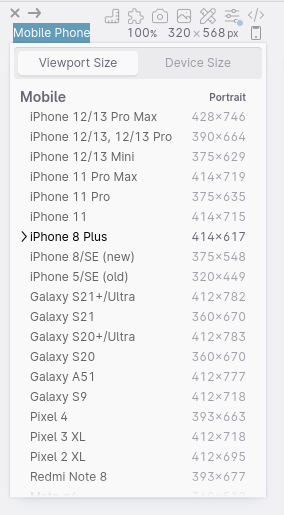
Your visitors resize their browser and use split screen, so they see your site at sizes no device has. That’s where most layout bugs show up, and those visitors get a broken site.
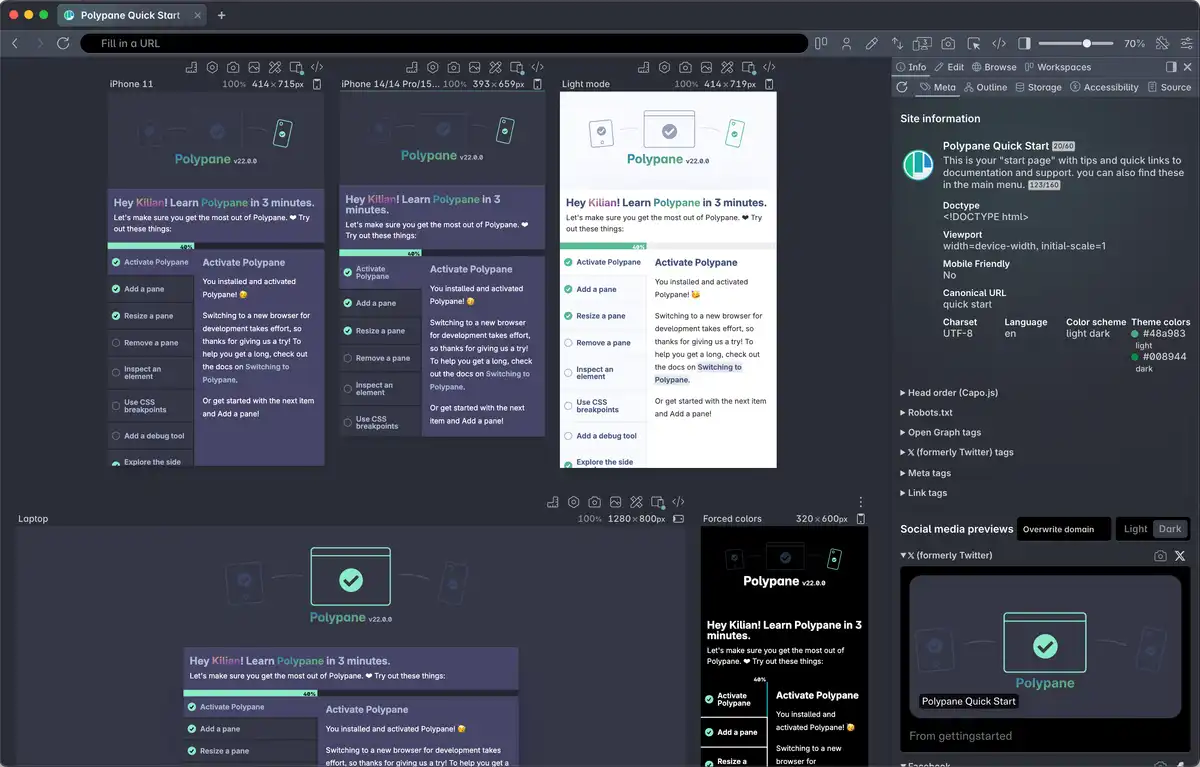
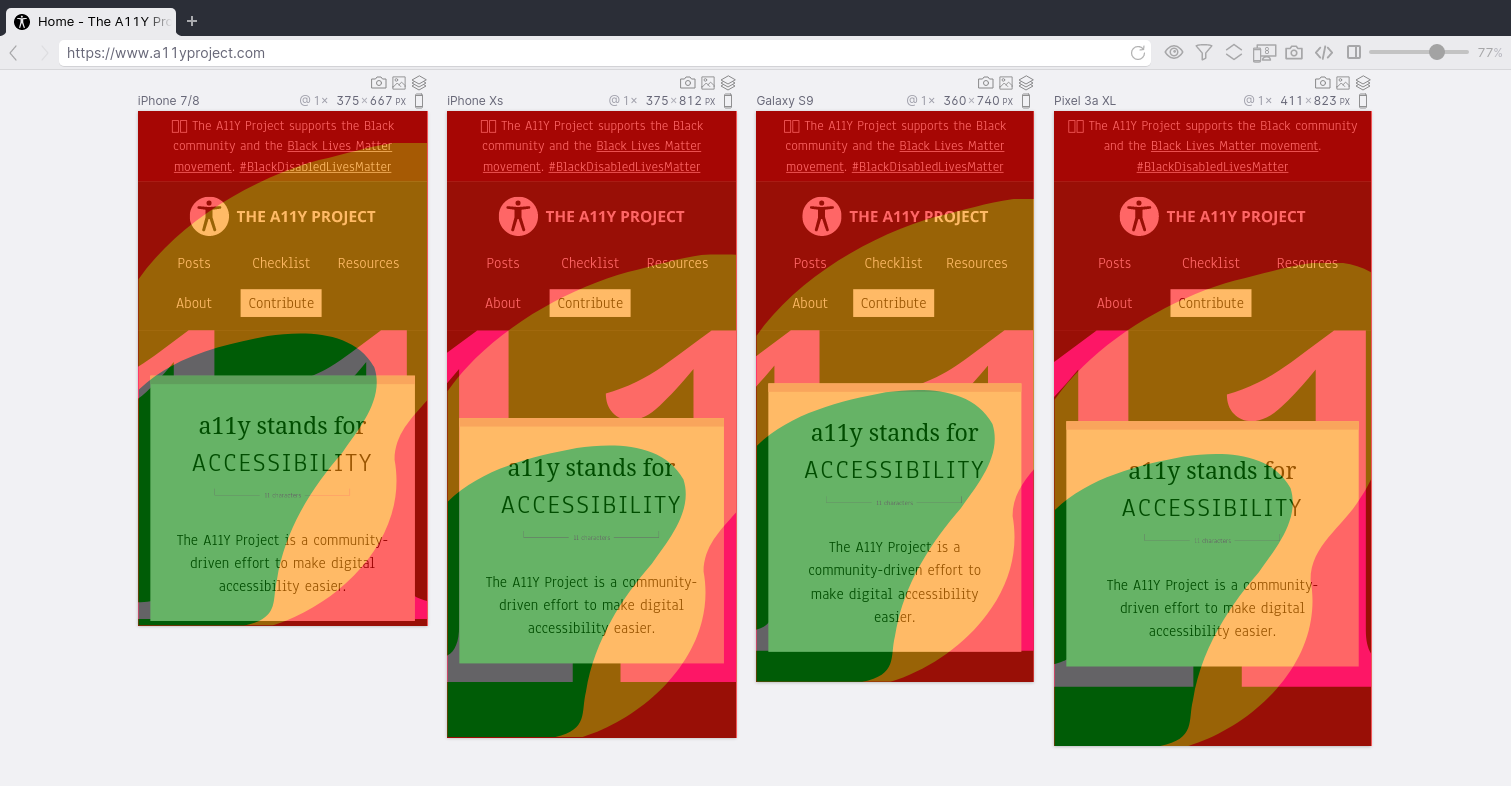
Polypane shows your site in as many panes as you want, side by side, at device sizes or any size you like. Press ⇧ ⌘ n to give every pane a random size for a quick stress test.
Test your breakpoints (and the pixel next to them)
The sizes that matter most are the ones in your CSS. If you have a max-width: 768px and a min-width: 768px, both apply at exactly 768px and anyone at that width gets a mix of both layouts. Those bugs are easy to write and hard to find, because you rarely test that exact pixel.
Polypane finds all the breakpoints in your CSS and creates a pane for each one with a single click. Breakpoint Edges adds the size right next to each breakpoint too, so you catch the off-by-one bugs.

Find horizontal overflow
A single element that’s a little too wide gives your whole page a horizontal scrollbar on mobile. That’s a WCAG failure, and it looks awkward on mobile.
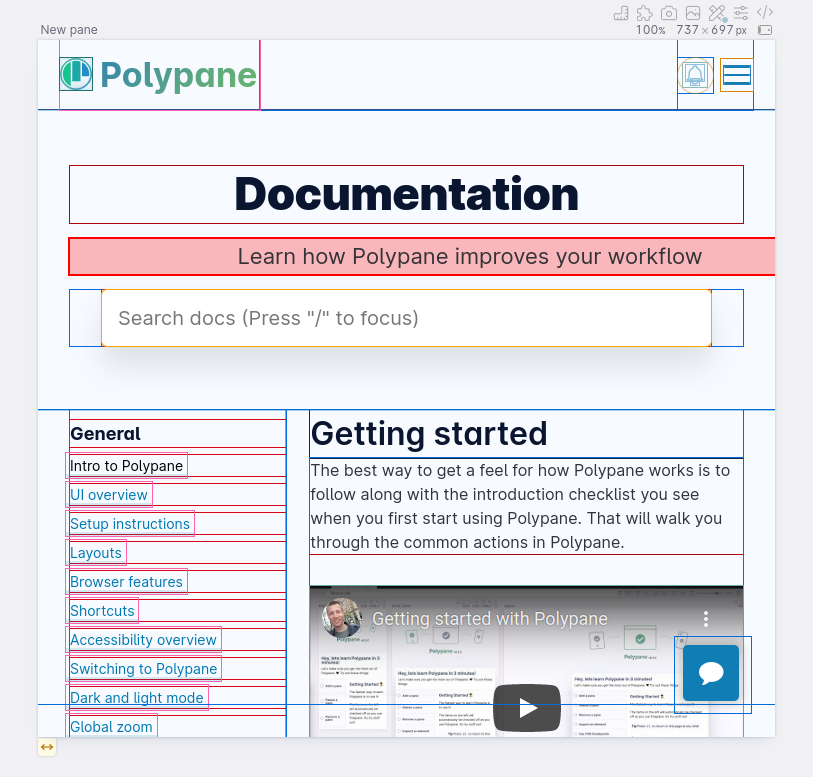
Polypane checks every pane for horizontal overflow automatically and shows a warning when it finds it. Click it and the element causing the overflow is highlighted, no messing around in the devtools needed.
Test notches and the browser toolbar
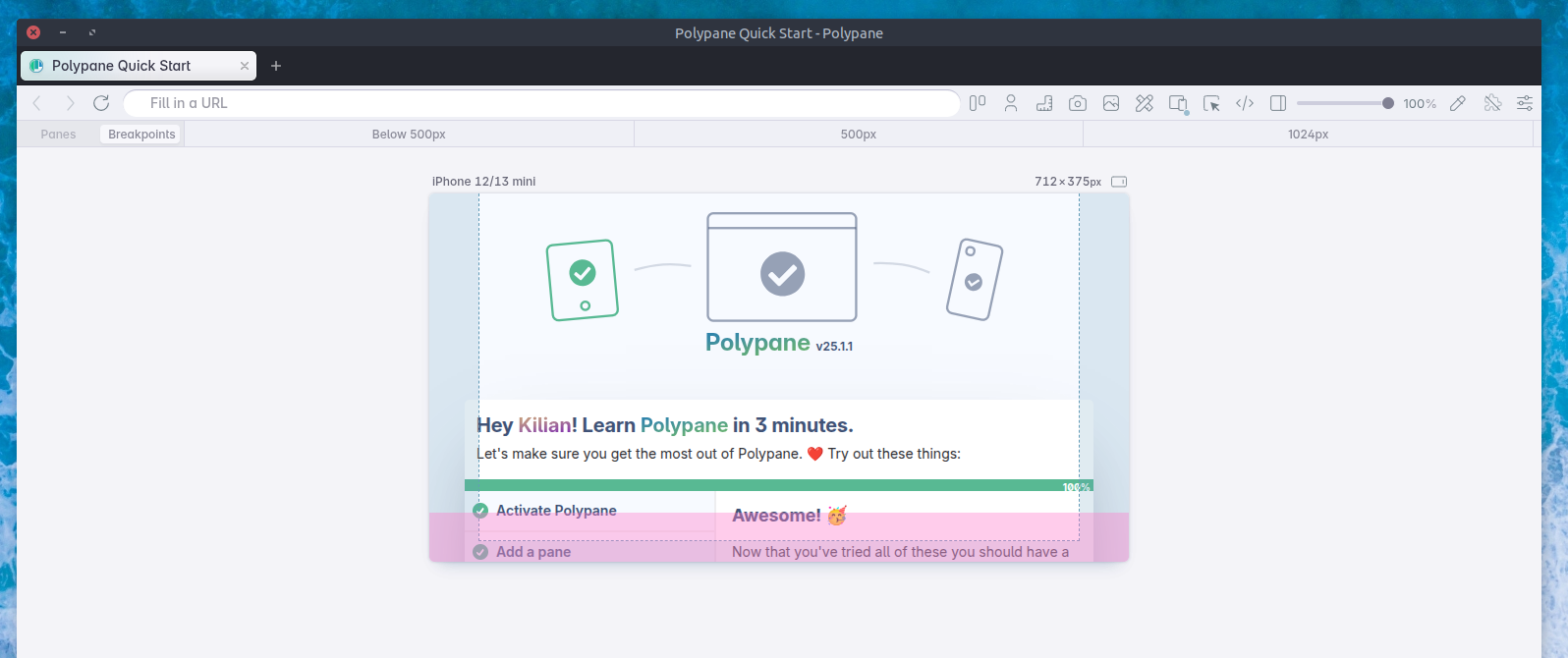
Phones have notches and home indicators that can cover your content, and mobile browsers show and hide their toolbar while you scroll. You don't want important content to be hidden and unreachable, so you need to account for these areas in your layout.
Polypane’s device presets include the safe area insets and small viewport height for each device, with overlays so you can see exactly where they are.
Test high-density screens
High-density screens load different images than your monitor does. If your srcset or image-set() is off, those visitors get blurry images, or images that are far bigger than they need.
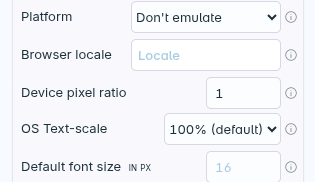
Polypane’s device presets have the right device pixel ratio, and you can set any pixel ratio per pane, so your responsive images load the same way they do on the real device.
Design for touch
There’s no hover on a touch screen, so touch users can’t open a menu that only opens on hover. Tap targets that are too small are a WCAG failure and lead to missed taps, and on large phones the top of the screen is hard to reach with one hand.
Turn on touch emulation in Polypane and your cursor becomes a finger that drags to scroll. The target size cursor shows you if your tap targets meet WCAG, and the reachability overlay shows which parts of the screen are easy to reach with a thumb (whether you’re righty or lefty).
User preferences
Dark mode, reduced motion & other preferences
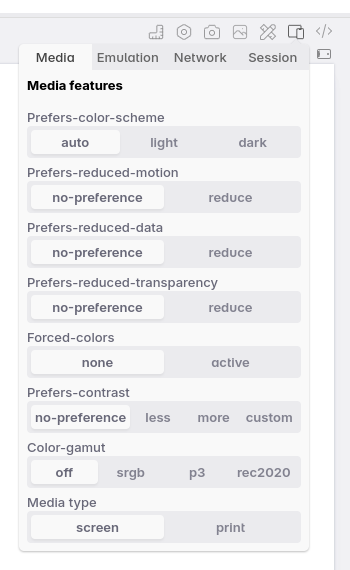
Your visitors set preferences in their OS, like dark mode or reduced motion, and your site should respond to them. Ignoring reduced motion can make people with vestibular disorders feel sick, and forced colors can hide important visual cues. You probably never change your own settings, so these are easy to forget.
Polypane lets you toggle prefers-color-scheme, prefers-reduced-motion, prefers-contrast, forced-colors, prefers-reduced-transparency and print styles for any pane with a single click, and test them side by side with your regular site. No need to change your entire OS.
Test zoom and font size
Lots of people browse zoomed in, and if your site needs horizontal scrolling at 400% zoom, that’s a WCAG failure. Others change only the default font size. A design can handle zoom but still break on large font sizes, so you need to test both.
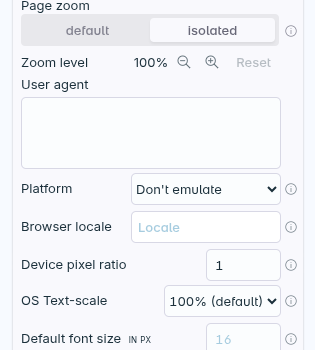
Polypane lets you give each pane its own zoom level and compare them side by side, or change the default font size per pane. If your media queries use ems, you can size your panes in ems too. The text spacing debug tool applies the WCAG 1.4.12 spacing so you can check nothing gets cut off.
Test other languages
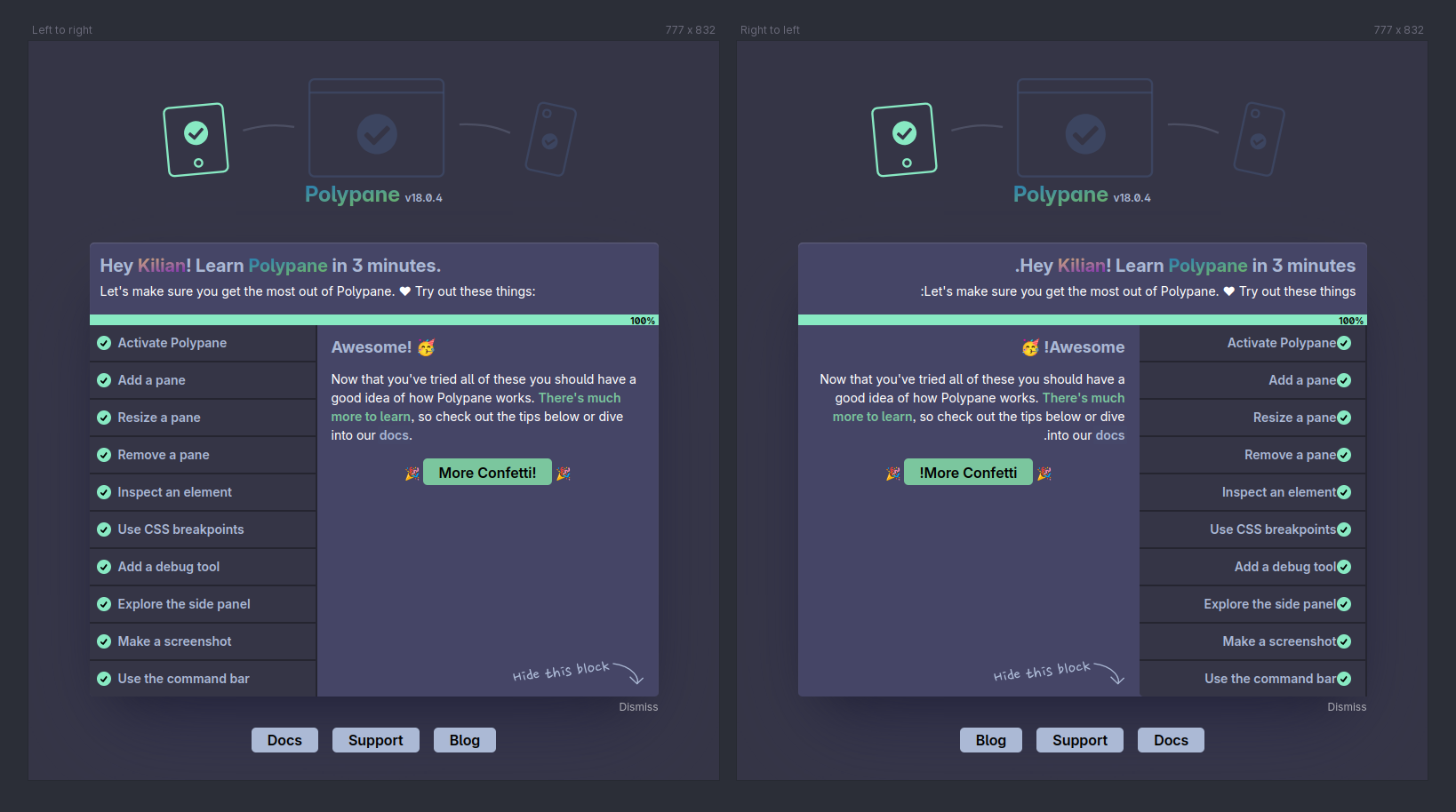
Translated text can be a lot longer or shorter than your English copy, and right-to-left languages flip your entire layout. Buttons and navigation are usually the first things to break, with text that overflows or gets cut off.
Polypane’s RTL emulation switches any pane to right-to-left but keeps the language unchanged. The content chaos test randomly makes your text longer and shorter, so you can see which parts of your layout can’t handle it.
Keep your text readable
A line length that’s comfortable on mobile can easily run to a hundred characters on a wide screen, and long lines are hard to read. On iOS, form fields with text smaller than 16px make the page zoom in when someone taps them, so they have to zoom back out to see the rest of your form.
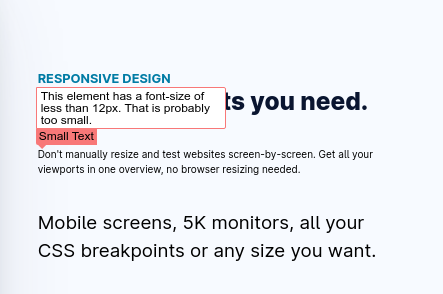
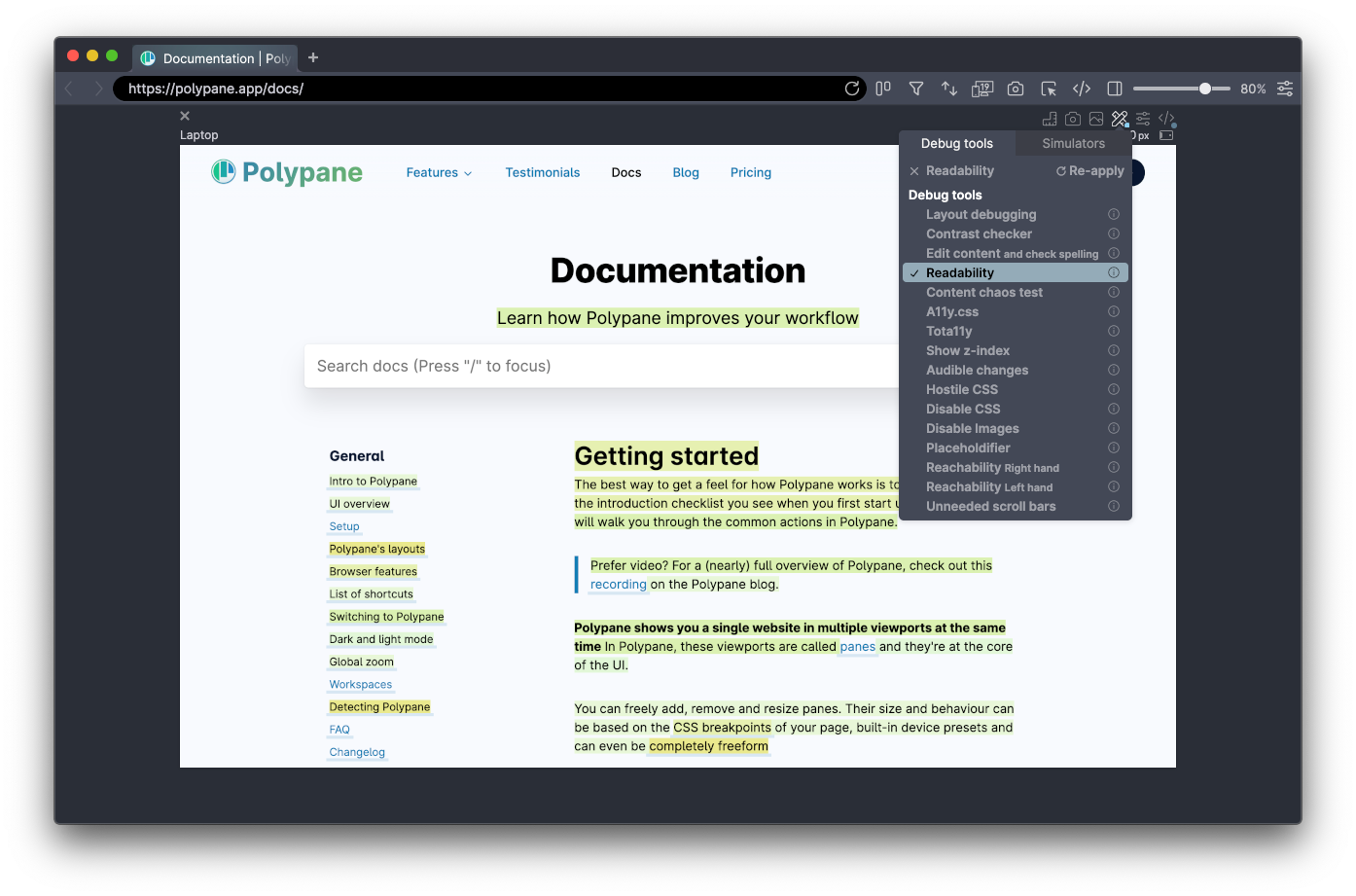
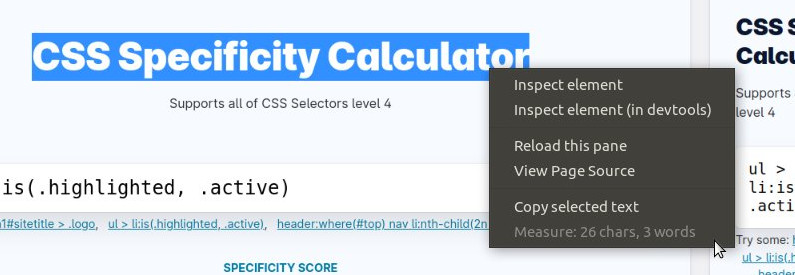
Select any text in Polypane to see how long the line is. The readability debug tool highlights the sentences that are hard to understand, and the detect small text debug tool flags text under 12px and form fields under 16px, and lets you preview the fix.
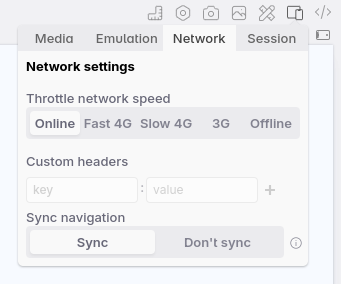
Test slow connections and data saving
Your mobile visitors are probably on a slower connection than you are, and if your page takes too long to load they leave.
Polypane lets you throttle the network and emulate prefers-reduced-data per pane, so you can compare a slow connection with a fast one side by side.
Interactions
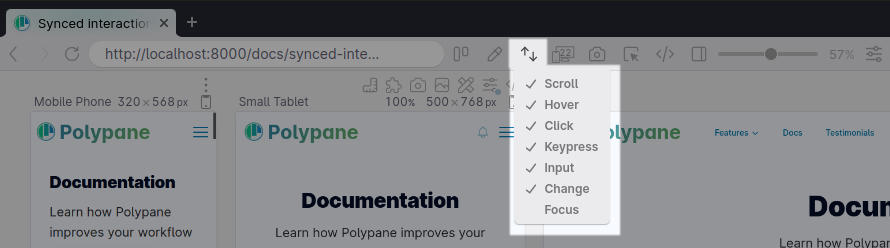
Test interactions everywhere
A menu that works fine on desktop can cover your content on mobile, and a form that’s easy to fill in at one size can be awkward at another. Testing every interaction at every size by hand takes forever, and filling in the same form over and over is the first test that gets skipped.
Polypane syncs your scrolling, clicking, typing and hovering across all panes. Test an interaction once and see it at every size. Right-click any form to autofill it with valid values, so testing a form takes seconds.
Check your container queries
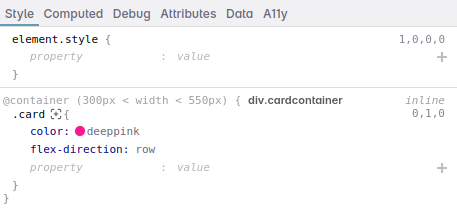
With container queries an element can respond to the space it’s in, instead of the size of the screen. The same card can look different in your sidebar and in your main column without needing to build two variants, but might need adjustments when used in different contexts.
Polypane’s elements panel shows which elements are containers, with their name, type and current size, and what your container query units are based on.
Make screenshots of every size
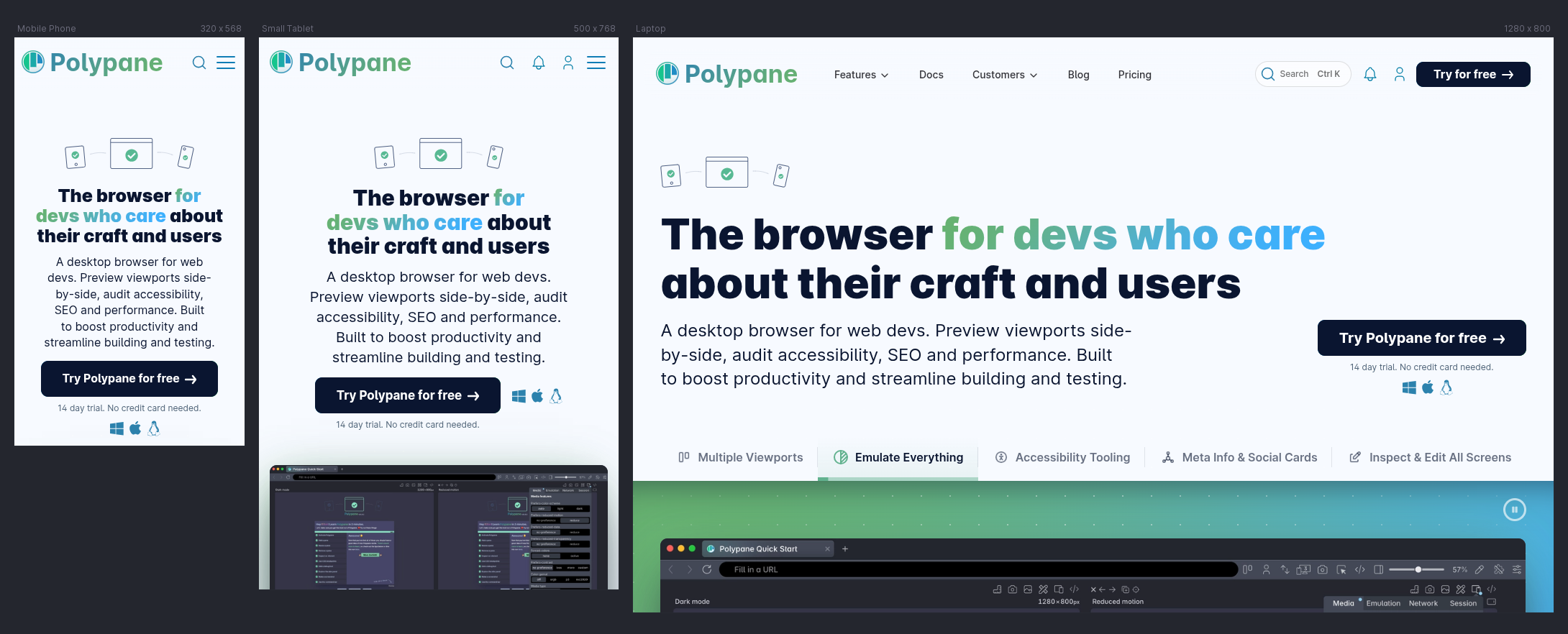
Screenshots are the quickest way to report a bug or show a client what their site looks like on every screen.
Polypane makes a screenshot of all your panes at once, full page or as a single overview of your whole workspace.
Next steps for when you found something that breaks.
Knowing what’s broken is half the work. Our responsive debugging workflow shows you how to reproduce a bug in every pane at once, find the element that causes it and try your fix at every breakpoint.
Follow our responsive debugging workflowBuild the way you already build, without missing anything.
Free 14 day trial, no credit card needed.
- 1 Create your account. Takes a minute.
- 2 Download the app. For Windows, Mac & Linux.
- 3 Build your next project with Polypane