Table of contents
Skip table of contentsIf you want to be kept up to date with new articles, CSS resources and tools, join our newsletter.
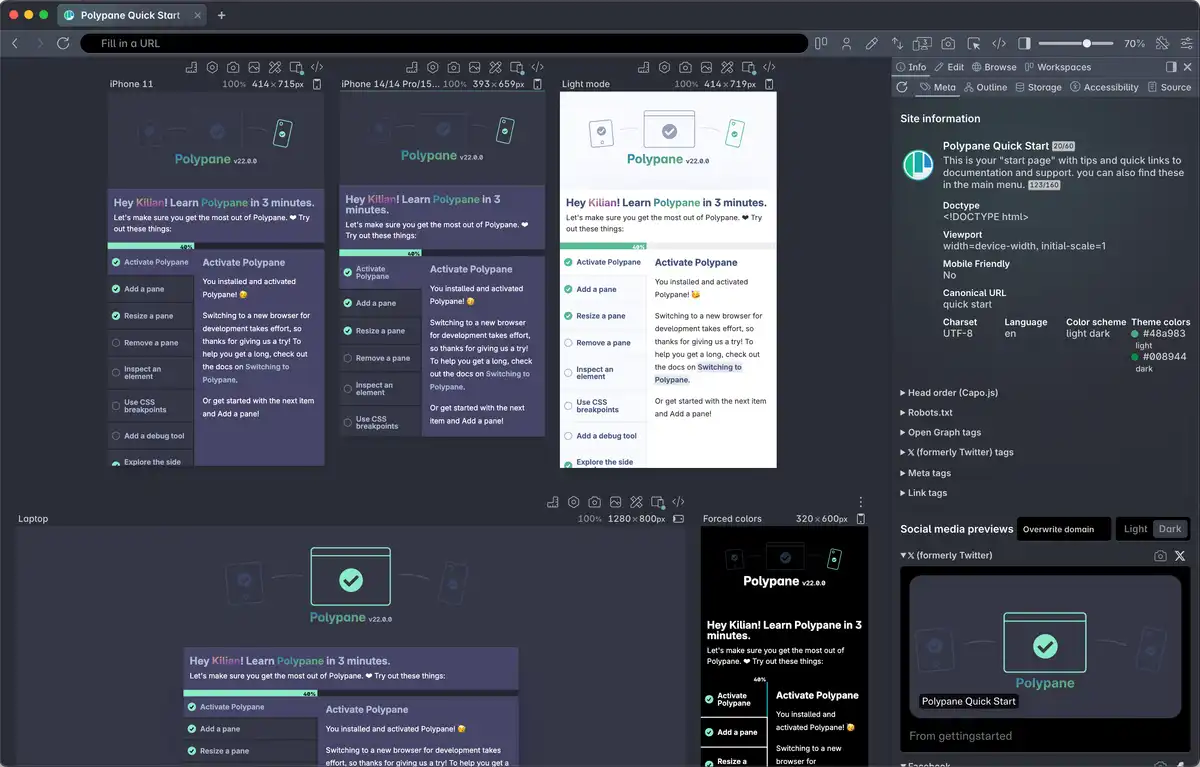
Polypane 27.1 is here and Polypane Portal has expanded! The Polypane console will now show the console messages from all connected browsers so you get instant feedback on errors and your own logs. Snippets are now also injected and ran in connected portals. This combination makes Polypane's Portal an even more powerful tool for testing and debugging across multiple browser and real devices. The elements panel and projects have also received a lot of quality of life improvements in this release.
 What's Polypane? Polypane is a development browser for professional web developers. Build and test responsive, accessible websites with multi-viewport previews, comprehensive device emulation and extensive accessibility tooling. Built for developers who care about their craft.
Portal
Polypane Portal is a powerful way to test and debug your site across browsers and devices by making your localhost available to the entire network or even the entire internet with zero setup. Once connected, browsers or devices are kept in sync with Polypane so as you scroll, type, inspect and edit in Polypane, your actions are mirrored in all connected browsers. It's pretty awesome.
Console messages in Portal
In 27.1 all connected browsers now send their console messages back to Polypane where they're shown in the Polypane Console. This means you can now see errors and logs from all connected browsers without needing to open devtools on each device or using other convoluted methods.
Code inputted in the Polypane console is also ran in all connected browsers, so inspecting and debugging is now easier than ever.
Snippets in Portal
When Portal is connected you can opt to run snippets in all connected browsers. Whether you have specific CSS debugging snippets, JS utilities you want to have available on page load or specific JS functions you run through the Snippets panel, all of those can now be ran in your Portal connected browsers too.
Elements panel
The Elements panel has received quite a few improvements in this release to make it easier to use and more powerful.
Arrow key navigation
When selecting an element in the DOM tree, you can now use the arrow keys to navigate around the tree:
- Up/Down arrows move to the previous/next line.
- Left arrow collapses the current node or moves to the parent if already collapsed.
- Right arrow expands the current node or moves to the first child if already expanded.
This is a really quick way to navigate deeply nested trees without needing to click around a lot, and an easy way to quickly move back up the DOM.
When the DOM tree has focus, you can also press h to hide the currently selected element.
Constructed stylesheet editing
You can now edit constructed stylesheets in the elements panel. These are stylesheets that are added to a document or web component root through JavaScript using the adoptedStyleSheets API.

Polypane had support for this in the Elements panel before, but the API for constructed stylesheets has changed (they're no longer available on the shadowRoot) and the implementation had to be updated. You can now again view and edit styles set through constructed stylesheets.
Collapsing unused custom properties
A common pattern has emerged where all custom properties are defined on :root or html to make them available throughout the app. Because of the way the elements panel collects styles, this means that each inspected element had dozens, if not hundreds of custom properties to be rendered in the elements panel.
Because these custom properties often have a color widget, rendering them is relatively expensive and this had a performance impact on the elements panel.
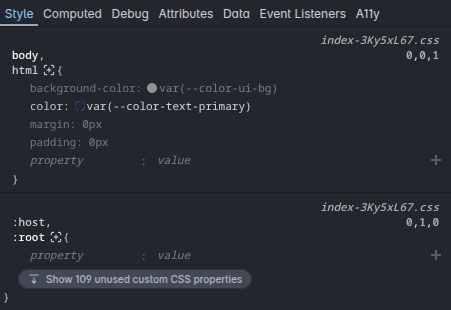
To improve performance, Polypane now initially only renders the custom properties that are used by the selected element and hides the rest behind a "Show unused custom properties" button. Clicking that button will expand all custom properties so you can inspect and edit them as needed. All other places where Polypane shows custom properties, like in the value suggestions, will continue to list all of them for easy access.
This performance improvement was recently added by the Firefox' DevTools team and it was such a good idea that I decided to implement it in Polypane as well.
Filtering computed styles
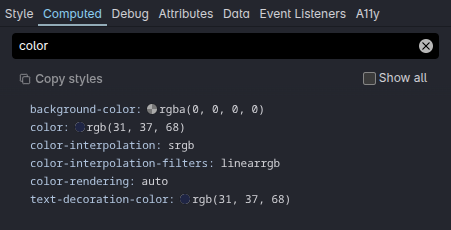
The computed styles overview now has a filter input at the top so you can quickly find the property you're looking for without needing to scroll through the entire list. Filter on both property names and values.
Hold cmd/ctrl to hide element info
When hovering elements in the DOM tree, Polypane shows a tooltip with information about the element like its dimensions, font, contrast, accessible name and role.
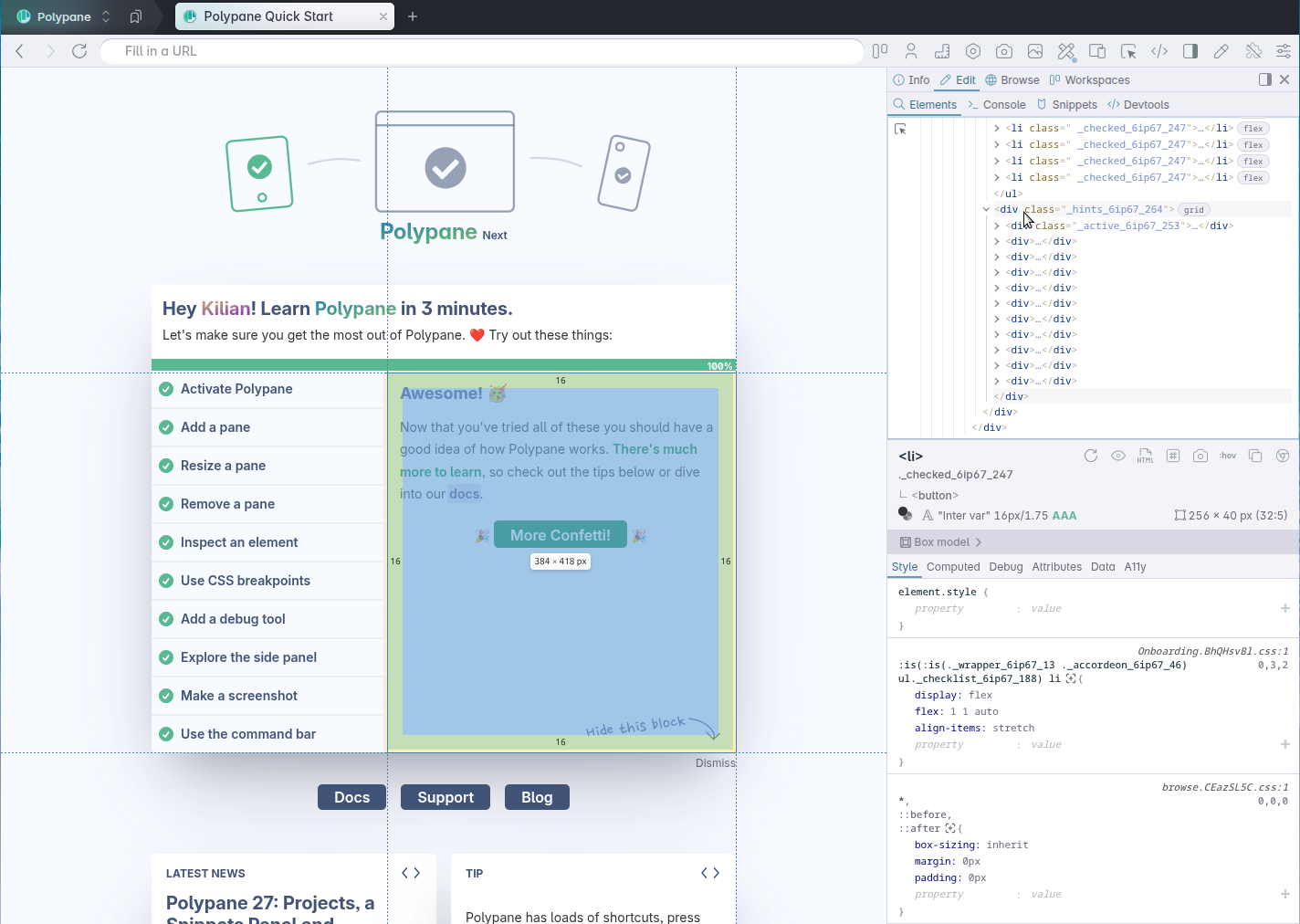
You can now hold the ⌘ key while hovering to show the margin, padding etc while hide the info panel. so nothing is obscuring parts of the page.
Projects
I'm overwhelmed by the positive response to Polypane Projects! It's great to see so many people using this powerful way to manage their work in Polypane, and I immediately went to work to make Projects even better based on your feedback.
Bookmarks filtering and navigation
Opening the bookmarks panel now focuses a filter input so you can quickly find the bookmark you're looking for. As you type, the bookmarks list is filtered to only show matching bookmarks.
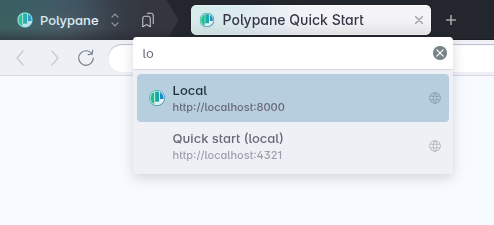
You can also now navigate the bookmarks list using the Up and Down arrow keys to move through the list and Enter to open the selected bookmark in a new tab.
Import/export projects and bookmarks
A new import and export system for Projects and Bookmarks makes it easier to back up you work, share projects with colleagues or move projects between different Polypane installations.
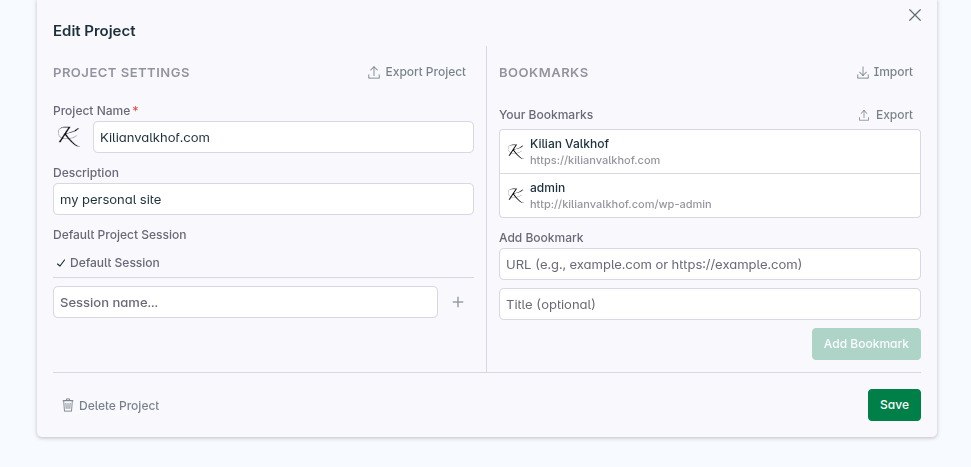
Projects import/export
Projects with all their settings can now be exported to JSON files. These files can then be imported into other Polypane installations to recreate the exact same project structure, settings and bookmarks.
We'll be sharing out the JSON Schema for this soon, so third party tools can also generate Polypane projects for you. Imagine configuring your accessibility audit in an online tool, then exporting it and having all the pages that are part of your audit automatically set up in Polypane!
Bookmarks import/export
Separately Bookmarks are now also importable and exportable. You can export all bookmarks in a project to a JSON file which can then be imported into other Polypane installations.
Additionally, Polypane now supports importing bookmarks from a bookmarks.html, a weird and old format that all browsers support.
This makes it easy to migrate your bookmarks from any browser to Polypane. When importing a bookmarks.html file all non-URL entries (like bookmarklets or browser internals) are filtered out automatically.
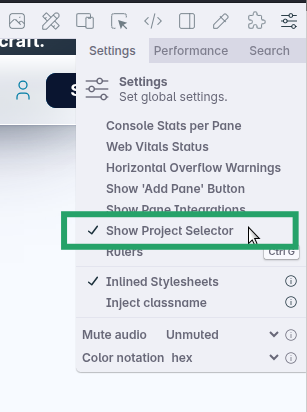
Hide project selector button
If you do not need the projects feature, you can now hide the project selector button by going to the settings in the address bar and unchecking "Show project selector". Thanks Artem for the suggestion!
Snippets panel improvements
Snippets are now also available in portal, but the snippets panel itself has also received two quality of life improvements.
Importing Bookmarks.html
You can now import snippets from a bookmarks.html file. The import automatically filters down to the bookmarklets, and adds them as snippets. If your bookmarks has folders, those are also recreated and the snippets are automatically placed in the folder they were in in the bookmarks.html file.
Deleting folders
When deleting a folder in the snippets panel, all contained snippets are now also deleted. Previously Polypane would just move the snippets to the root folder, but this created a lot of additional work when you wanted to delete a whole folder of snippets. Now you can just delete the folder and all its contents in one go.

Any snippet you want to keep can be moved out of the folder before deleting it.
Outline panel
The Outline panel is one of the most used features in Polypane, but heavy pages could feel slow in Polypane as it indexed, analysed and rendered sometimes thousands of links, headings and images parsed from the page, and doing so after every DOM change on the page.
To prevent this performance impact, the outline panel for new tabs now always starts in a paused state. From there you have two options:
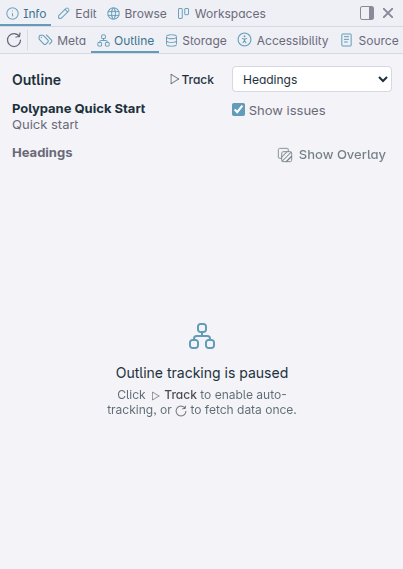
- Get the outline once by clicking the load button, which fetches the data once and then pauses again.
- Enable automatic tracking by clicking the Track button: As the DOM changes, for example through user interaction or scripts running on the page, the outline will update automatically so you're always seeing the actual outline of the page.

This way, you can choose when you want the outline to update automatically, when you want to just get the outline once without impacting performance, and when you don't need the outline at all.
Outline rendering improvements
There are also made a number of improvements to the outline rendering performance so that even when automatic updating is enabled, the outline panel is more responsive than before, especially on large outlines.
Image outline role=img support
The image outline now also includes elements with the role="img" attribute. This is especially useful for SVG images that use this role to provide accessible names and descriptions.
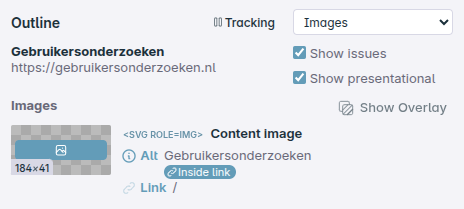
It took a while to find the right solution for this, as elements with role="img" are not transportable like regular image files. They might simply be a HTML div, or SVGs might have external CSS or even import a specific group from an external SVG file.
role="img" elements are shows as a placeholder in the aspect ratio of the element. The outline will show you all the important information like the accessible name and dimensions so you can verify that these images are accessible. Thanks Robbert for the suggestion!
Focus outline accessible name warnings
The focus outline falls back to the text content of an element if it has no accessible name to make it easier to see what element has focus. This is a deliberate choice, but it also can make it seem like an element has an accessible name when it actually doesn't.
The Focus outline will still fall back to the text content to aid the visual identification of focused elements, but now also shows a warning next to elements that have no accessible name so you can easily identify these elements and fix them. Other outlines and the Polypane Peek tooltip have always shown these warnings, so this makes the focus outline consistent with the rest of Polypane. Thanks Ron for the suggestion!
Meta panel
The meta panel now uses the newly released Capo.js 2.0.0 for its head order overview. Capo 2 is smaller and faster.
Marker.io integration update
The Marker.io integration needed an API update to keep working. The Marker button will now appear again when set up.
Get Polypane 27.1
Polypane is available for Windows, Mac and Linux in 64 bit and ARM versions.
Polypane automatically updates on Mac, Windows and on Linux when using the AppImage. Otherwise, go to the download page to download the latest version!
Don't have Polypane yet? There is a 14 day trial available.
Try it for free. No credit card needed.
Polypane 27.1 Changelog
New
- New Portal: Console messages from connected browsers are now shown in the main Polypane console
- New Portal: Snippets are now ran in connected browsers
- New Elements panel: Arrow key navigation for DOM tree
- New Elements panel: Support for adopted stylesheet editing
- New Elements panel: Filtering for computed styles
- New Elements panel: collapsing of unused custom properties
- New Outline panel: Enable/disable automatic updating
- New Projects: Import/export projects
- New Projects: Import/export bookmarks
- New Projects: Import bookmarks.html file support
- New Projects: Filter bookmarks and navigate by keyboard
Improvements
- Improved Elements panel: Support for referential IDREFs
- Improved Elements panel: Hold cmd/ctrl while hovering DOM tree to hide element info
- Improved Console panel: use
keys(),values()andentries()to log iterable objects - Improved Console panel: messages now support multiple styles using %c
- Improved Outline panel: Show elements with role=img in image outline (Thanks Robbert!)
- Improved Outline panel: Improve rendering performance for large outlines
- Improved Outline panel: Focus outline now shows warning for missing accessible names (Thanks Ron!)
- Improved Accessibility info updates fasted across the app
- Improved Color picker: Picking a new selected color no longer changes the background color (Thanks Eric!)
- Improved Projects: option to hide project selector button (Thanks Artem!)
- Improved Projects: Adding bookmarks will refocus the URL input
- Improved Quick start: Links are now opened in new tabs (Thanks Max!)
- Improved Meta panel: Capo.js head order overview updated to 2.0.0
- Improved Snippets: Deleting a folder now deletes all containing snippets
- Improved Snippets: Support importing bookmarks HTML
- Improved Snippets: Updated list of Google fonts
- Improved Updated Chromium to 142.0.7444.226
Fixes
- Fix Marker.io integration needed an API update.
- Fix QR for Portal now updates correctly (Thanks Jesper!)
- Fix Console popups would sometimes lock up the app (Thanks Luan!)
- Fix Projects: Add bookmarks as new tabs would not work (Thanks Andy!)
- Fix Split view: Prevent rulers from overlapping pane headers
- Fix Elements panel: CSS Suggestions for new properties would be clipped
- Fix Elements panel: Fix HTML editing styling on Linux
- Fix Elements panel: adding styles with trailing ; works automatically
- Fix Sidebar: Issue where sidebar could be visible without it being opened