Table of contents
Skip table of contentsIf you want to be kept up to date with new articles, CSS resources and tools, join our newsletter.
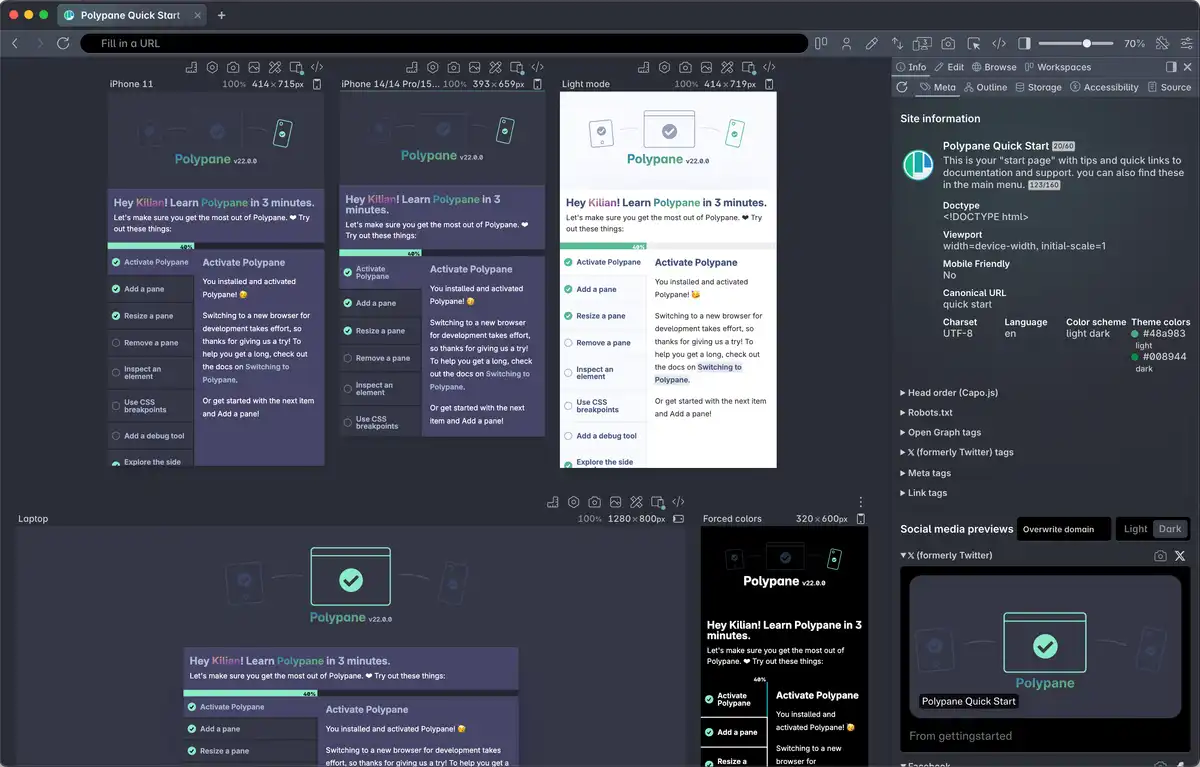
The first release of 2026 comes with plenty of improvements to Projects, the new Environments feature prevents you from confusing production for localhost, the Elements panel is faster and more powerful than ever, and Polypane now runs on Chromium 146.
 What's Polypane? Polypane is a development browser for professional web developers. Build and test responsive, accessible websites with multi-viewport previews, comprehensive device emulation and extensive accessibility tooling. Built for developers who care about their craft.
Projects
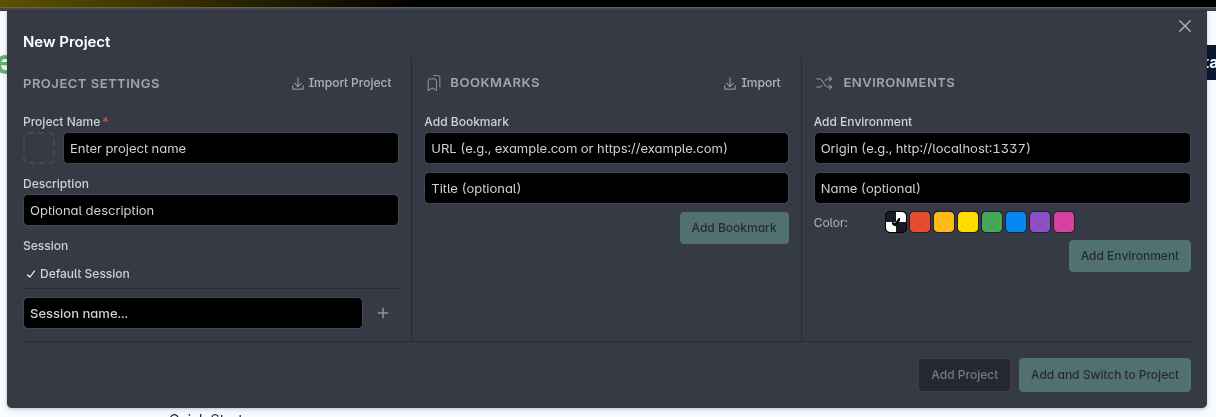
We continue to get really good feedback and user requests on Projects, which helps us prioritize what to work on next. In Polypane 28, we're introducing a new Environments option, Bookmarks are now available in the Browse panel too and Projects, Bookmarks and Environments can now be re-ordered with Drag and Drop, so you get to decide what order they appear in.
Project Environments
When working on any project, you probably have it running in multiple places: locally on your machine, on a staging server/acceptance environment and in production. And you switch between them depending on what you're working on.
And maybe more often than you'd like to admit, you accidentally keep refreshing production in utter frustration because the changes you made on localhost aren't showing up. (yeah, absolutely never happens to me neither).
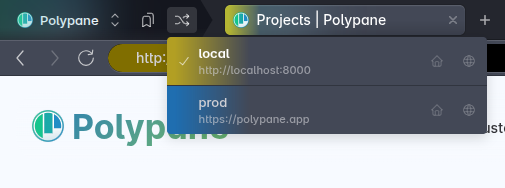
With the new Projects environments, not only is it incredibly easy to quickly switch between your different environments, the color indicators in the tab and address bar let you see at a glance which environment you're currently working in. For example, my localhost is always yellow:

Each environment can have its own color that is shown in the tab, the address bar and the environment switcher. At a glance you immediately know which environment you're working in, and you're never stuck refreshing production waiting for changes you've made on localhost to show up.
Switching between environments makes it easy to keep the same context while testing your site in different setups: switching the environment will keep you on the same page, just on the different domain.
Switch to specific environments using the environment switcher, or middle click the icon to simply advance to the next environment in the list.
This feature has been on our backlog since early 2025 and having used it in the past few weeks I can say it's a much bigger productivity boost than I anticipated.
Want to try Environments? Start your free 14-day trial. No credit card required.
Learn more about Project Environments →
Project, bookmarks and environment reordering
You can now reorder Projects, Bookmarks and Environments using drag and drop. Just grab the item you want to move and drag it to the desired position in the list.
For projects, this can be done right in the project switcher so you can put the projects with the highest priority on top.
Bookmarks and environments can be reordered in the Project editor, again using drag and drop:
Color indicator for panes
The color indicators for domain and tab overrides were only shown in the tab and address bar. In Polypane 28 we now also show this for any pane that has navigation sync disabled. When you're comparing multiple environments in a single tab, this makes it easy to see which environment you're currently viewing.

Be Inclusive integration
Thr accessibility auditing tool Be Inclusive can now export audit reports as Polypane projects, making it super easy to import your audits into Polypane.
Export your audit from Be Inclusive and load it into Polypane. The target samples you specified in Be Inclusive are automatically added as bookmarks in your project, so you can quickly jump to those pages and test your fixes.
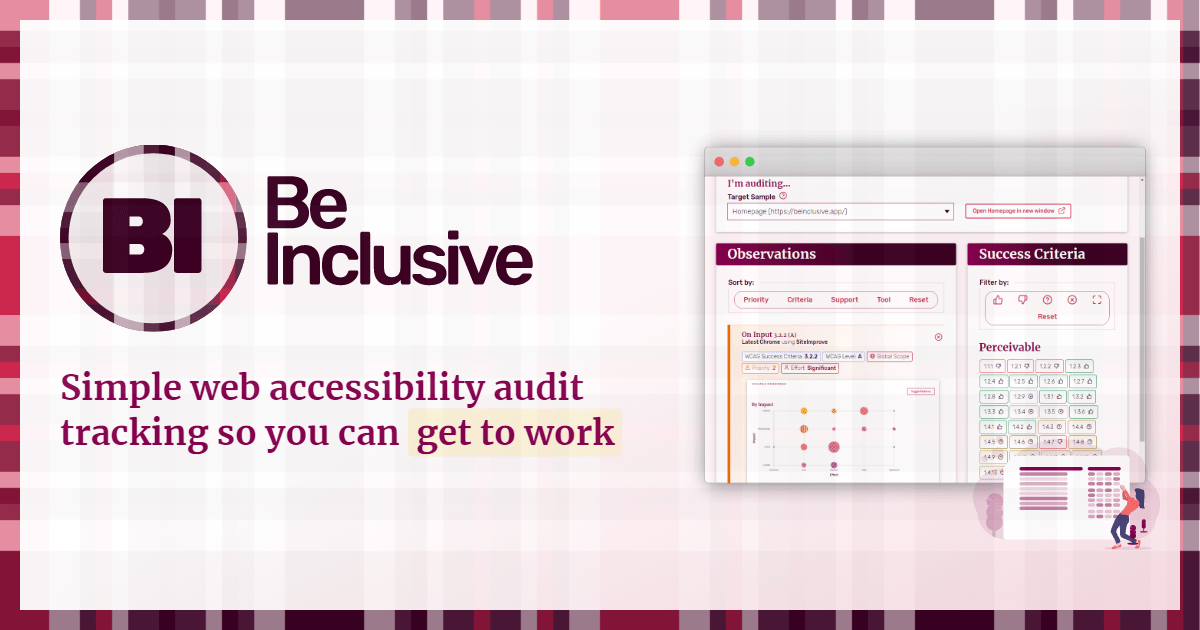
Polypane subscribers get a 15% discount on Be Inclusive! If you have an active subscription, find a discount code on our Deals page.
CLI options
Polypane now has several new and improved command line options, including a completely new --help/-h overview that shows all available options:
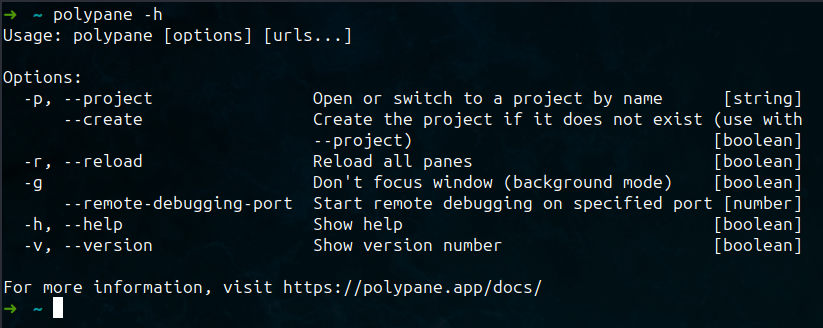
You can now open as many URLs as you want when starting Polypane from the command line. Just add them after any options and they will be opened in tabs in the current project.
$ polypane https://polypane.com/docs/ https://polypane.app/support/You can use --project to switch to a specific project when opening Polypane from the command line,
$ polypane --project=projectnameor you can open a URL directly in a specific project
$ polypane --project=projectname https://polypane.com/docs/When you try to open a project that doesn't exist, Polypane will now ask if you want to create it. You can also automatically create the project without prompt by adding the --create flag. That will create the project if it doesn't exist yet, and open any URLs in the newly created project.
$ polypane --project=projectname --create https://polypane.com/docs/Altogether this makes for an incredibly easy way to quickly instantiate new projects from the command line. You could even add this to your scaffolding scripts for new projects and automate the creation workflow entirely.
This new set of CLI options also makes it easy to integrate Polypane in your existing workflows, for example by always opening specific urls in a specific project.
Learn more about CLI options →
Tray/Dock options
On macOS and Windows, you can now right-click the Polypane icon in the Dock/Tray to quickly open or switch to a specific project. This makes it easy to switch projects without having to open the project switcher first.
This feature is not available on Linux because it's not possible to populate a .desktop file with dynamic menu items.
Disabled cache logic improvements
Polypane's cache disabling logic has been improved in Polypane 28. Instead of applying cache disabling to sessions, which could lead to unexpected cache handling in specific panes, we now apply cache disabling directly on the web content instances of individual panes.
What you will notice is that a disabled cache behaves more consistently across all panes and tabs, and that there are fewer instances of stale caching on normal reloads. With this change, cache disabling is more predictable and in line with the 'disable cache' button in the Chrome devtools.
Cache is still enabled by default
Polypane continues to have caching enabled by default. I strongly think the Chromium Devtools feature that automatically disables caching is harming web developers more than it helps them.
It obscures real-world issues that only appear when caching is enabled, and it gives a false sense of security that your site works correctly when in reality it might be broken for your users.
Console panel: console.group support
The Console panel now supports console.group, console.groupCollapsed and console.groupEnd, making it easier to structure your console output when debugging.
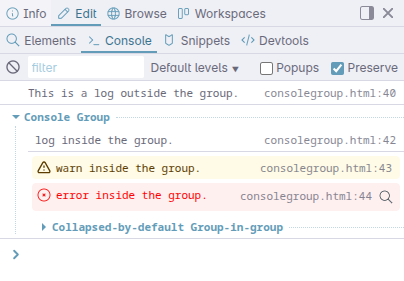
Polypane's console is built from the ground up and shares no code with Chrome DevTools so we can support collecting console messages from all panes. Since we can't re-use existing code it took us a while to get this feature in while making sure that the console clearly shows where messages come from and consolidating groups across panes correctly.
Elements panel
When using the Elements panel in Polypane 28 you'll notice how much quicker it shows styles when inspecting elements. What took a few hundred ms now takes less than 50ms for the majority of pages. We've made several performance improvements under the hood that make inspecting elements and switching between them much faster, especially on pages with a lot of styles.
Editing CSS selectors
New in Polypane 28 is that you can click on any CSS selector in the Styles pane to edit it. This makes it easy to refine your selectors or re-apply styles to other elements by changing the selector to match those elements.
Other browser devtools also have this feature, but of course the Polypane developer tools apply the changes live across all panes, so you can see how your changes affect different viewports and devices immediately.
Improved !important visibility
!important css properties now have a new design that makes them much more visible than the previous design.
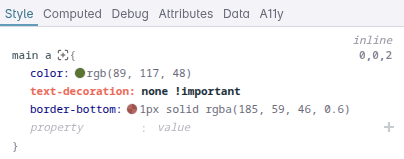
In Polypane 28 both the property name and value have a different color when you use !important, making them much more visible in the list of styles. !important is best avoided of course, but sometimes it's the most practical solution. With this new style highlighting, figuring out what's going on with your styles is a bit easier.
Notable Fixes and improvements
Editing styles on parents nodes were not being applied in Polypane 27.x. This has been fixed in Polypane 28, so changing styles on parent elements now works as expected.
When you're editing the HTML of an element you no longer have to click 'Apply changes', you can also press ⌘ Enter so you don't have to leave your keyboard.
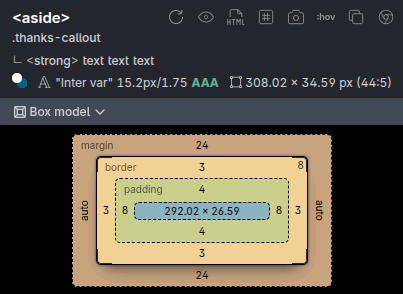
There were some sites where a specific border-radius style would cause an issue with our box model visualisation (which also shows border radius, shadows and positioning). This has been fixed in Polypane 28 so the box model now always renders correctly.
The attributes tab will now check the autocomplete values on input elements and show a warning when an invalid value is used. This makes it easier to spot typos or incorrect values that prevent browsers from autofilling forms correctly.
Learn more about the Elements panel →
UI updates
Polypane 28 includes several UI updates to improve usability and consistency throughout the app.
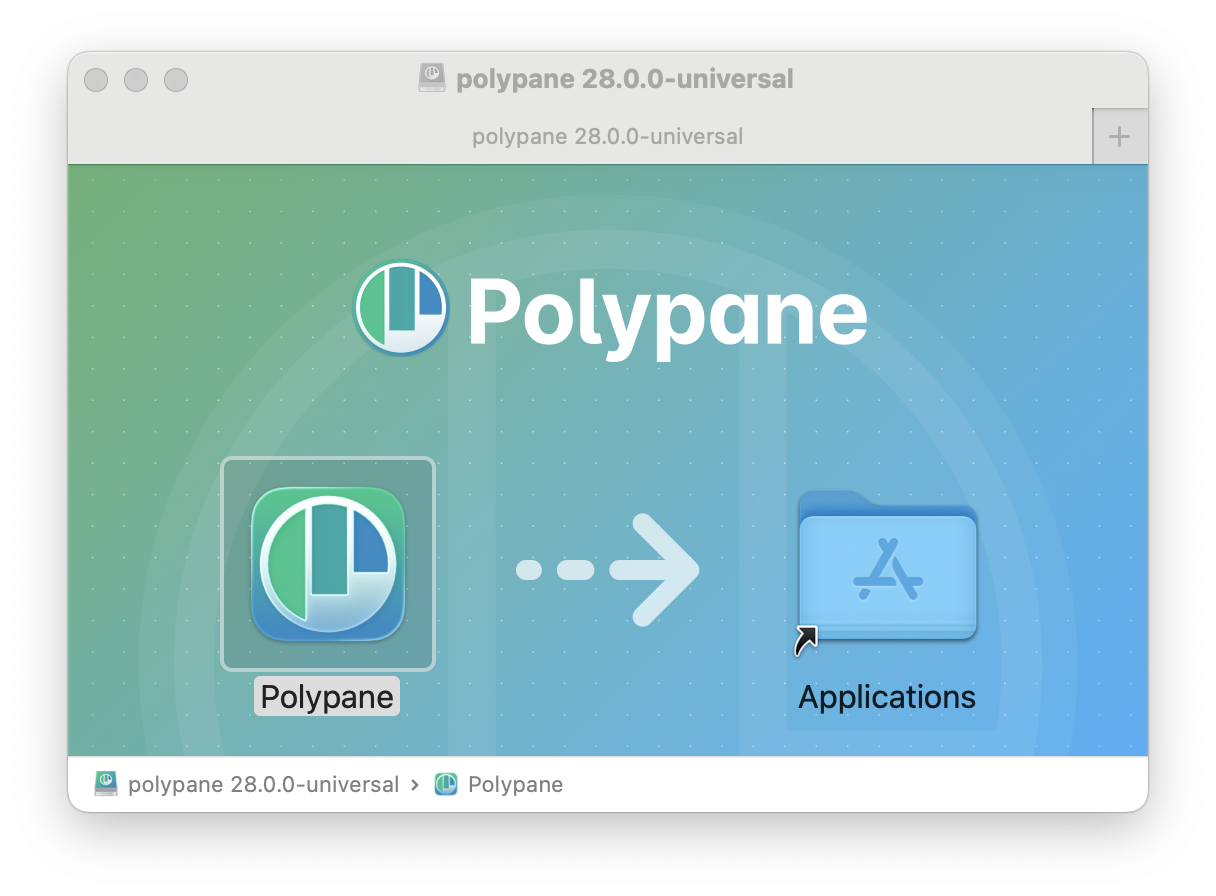
New macOS installer background
Our macOS installer now features a new background image that aligns with the updated Polypane branding, and we've also made the icons larger.
Panel design updates
Several panels have received design updates to improve their usability and visual consistency. The outline panel has a completely new design for when it's bottom-aligned to make much better use of the space.
The meta panel now keeps the social media preview header visible as you scroll, so you can quickly switch between light and dark previews, overwrite with different domains or reorder and hide specific previews.
Live reload redesign
The live reload panel has been in Polypane since 2019, and it's a beloved feature for many users because it makes testing changes so easy without having to build complex setups.
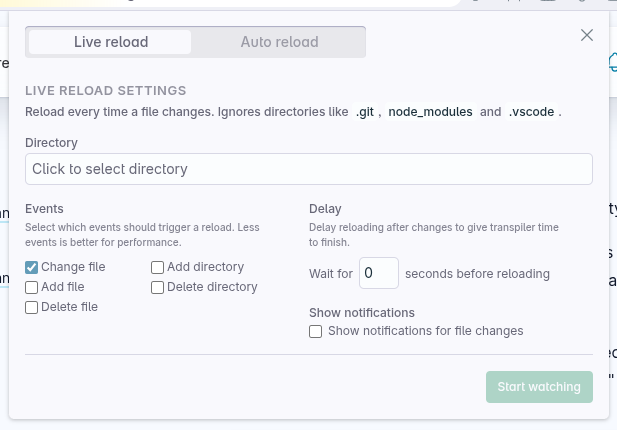
In Polypane 28, we've redesigned the live reload panel to better fit with the overall Polypane UI. It's now more consistent with the other panels in Polypane and provides more context on the available options.
Learn more about Live reload →
Browse panel
The Browse panel has received several improvements to its ergonomics in Polypane 28. The new bookmarks button lets you quickly open your bookmarks in the Browse panel (even if you've hidden the Project selector). The Browse panel now also has better focus handling for keyboard users, supports default browser shortcuts when focused, and has a new Find in page feature.
Bookmarks in Browse panel
The Browse panel now has a new drop down showing your bookmarks for the current project. This makes it easy to open your bookmarked pages directly in the Browse panel.
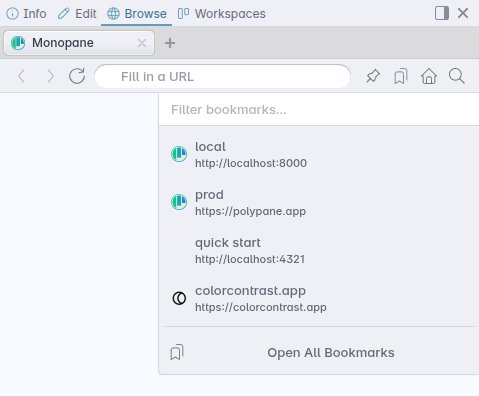
Additionally, if you've decided to hide the Project Selector in the tab bar, you can still access your bookmarks from the Browse panel.
Shortcuts
When the Browse panel has focus, 'normal' browser shortcuts, like opening and closing tabs or focusing the address bar, work as expected in the Browse panel instead of triggering Polypane-wide shortcuts. This makes it easier to use the Browse panel as a full browser experience without leaving your keyboard.
Search in page
With the Browse panels primary goal of being a supplemental browser where you can have your docs and references open, having a search feature has been a frequently requested feature. In Polypane 28, you can search in the Browse panel using ⌘ F when it's focused to quickly find text on the page.
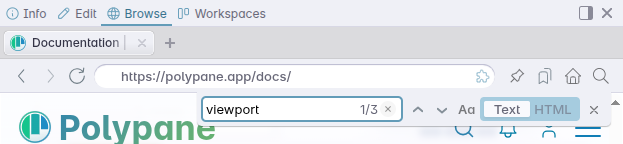
Both text and HTML search are supported, and the search results are highlighted on the page as you type.
Learn more about the Browse panel →
Meta panel
We've added several nice improvements to the meta panel along with the design update mentioned earlier.
New Bluesky preview for pages without OG image
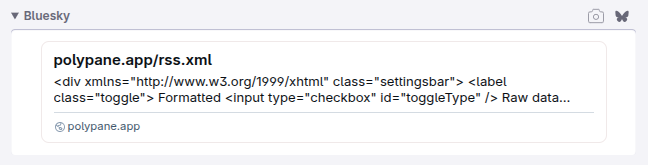
When a website doesn't have an OG image defined, Bluesky uses either the description or the page content to create a rich preview. This is quite different from other social media sites, and now Polypane replicates this behavior in the Meta panel. That way, you see exactly what your users see.
Security.txt warning
A while back, the security.txt of our website expired and we failed to notice it until someone reached out to us about it. Polypane 28 now checks the expires date of your security.txt and warns you if it's expired, or if it's about to expire in the next 30 days.
Learn more about the Meta panel →
Outline panel
We've made various updates to the form overview in the outline panel to make testing forms easier.
Autocomplete value
The autocomplete value is now always visible directly below the label, so you can quickly assess if the correct value is being used.
Autocomplete values are automatically checked against a list of valid values for a particular input type and that list is now also aware of the shipping and billing prefixes for address related values.
When an invalid value is used, a warning icon shows next to the value so you can see which fields need your attention.
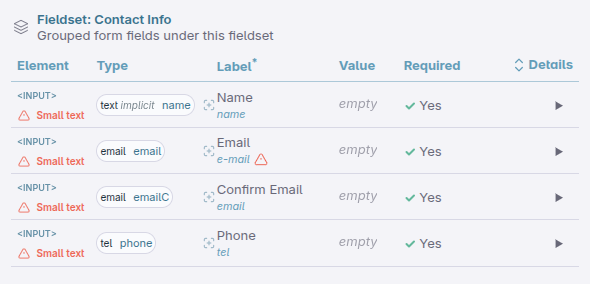
The form overlay now also shows these warnings, making it easier to spot issues when inspecting forms.
Form outline now warns about small font sizes
The form outline now checks the font size of text input elements and warns you when the font size is smaller than 16px, which causes the page to zoom in on iOS devices on input focus. This is a poor user experience on mobile devices, so the warning helps you catch and fix it early.
Form outline expand all details option
You can now click the 'details' header in the form outline to expand or collapse all details sections at once. This makes it easier to get an overview of all issues or warnings in your forms without having to open each section individually.
Learn more about the Outline panel →
Snippets from the command bar
You can now activate and deactivate snippets directly from the command bar. Just open the command bar with ⌘ K and type the name of your snippet to quickly toggle it on or off, or activate it.
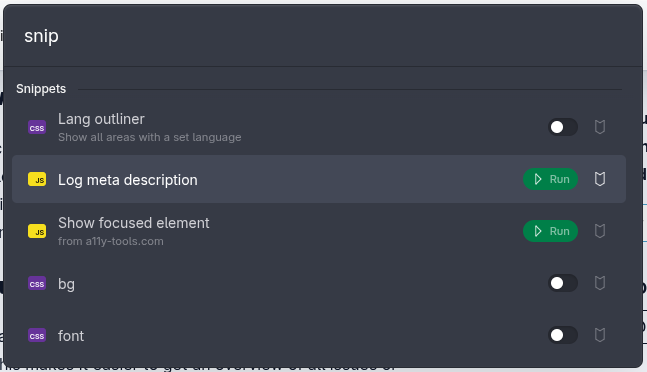
This lets you quickly apply (and remove) snippets without having to open the snippets manager, and it's all accessible from your keyboard.
Page Load performance
We've made several improvements specifically to the page load performance in Polypane 28. Polypane now does less work setting up its various listeners and indexers when loading a page, resulting in faster load times, especially on pages with a lot of elements or complex structures.
Polypane and WCAG updates
Accessibility consultant Jules Ernst has updated his overview of WCAG success criteria and how Polypane helps you test for them.
Check out the updated Polypane and WCAG overview on his site for the latest information.
Chromium 146
Polypane 28 is built on Chromium 146. For all the experimental features enabled in this release, check out the experimental web platform features overview.
Get Polypane 28
Polypane is available for Windows, Mac and Linux in 64 bit and ARM versions.
Polypane automatically updates on Mac, Windows and on Linux when using the AppImage. Otherwise, go to the download page to download the latest version!
Don't have Polypane yet? There is a 14 day trial available.
Try it for free. No credit card needed.
Polypane 28.0.3 Changelog
- Fix Issue preventing Mac users from auto-updating
Polypane 28.0.2 Changelog
Improvements
- Improved Added cmd/ctrl+shift+d shortcut to reload all debug tools (Thanks Florian!)
- Improved Snippet manager UI improvements
- Improved Outline panel: now ignores hidden headings for duplicate content checks
- Improved Outline panel: Improved logic for aside elements in sectioning content (Thanks Eric!)
- Improved More resilient build and update internals
- Improved Elements panel: Improve performance for large DOM trees
- Improved Context menu performance in browse panel
- Improved Peek now shows the currentSrc for videos
- Improved Meta panel: Warn when the og:url is not the same as the canonical or page url
- Improved Breakpoints no longer list negative value widths
- Improved Breakpoint panes adhere to the minimum pane width
- Improved Reduced installer download size by an average of 25%
- Improved Updated list of Google Fonts
- Improved Updated Chromium to 146.0.7680.31
Fixes
- Fix Prevent Polypane shortcuts overwriting global ones on app launch (Thanks Benoit!)
- Fix Elements panel: issue where autocomplete cleared the typed value when adding attributes or css values
- Fix Color picker not setting correct background color when inspecting from Elements panel
- Fix Snippets: Last save location is now correctly remembered when saving snippets
- Fix Install extensions from suggestion box when you have multiple sessions
- Fix Reinstate sync engine after main window reopen on macOS
Polypane 28.0.1 Changelog
Improvements
- Improved Environments switcher: Add cmd + click as option to cycle through environments for mac (Thanks Nicolas!)
- Improved Meta panel: Improved Bluesky preview for pages with missing og info (Thanks Matija!)
- Improved Outline panel: Form list now also indexes role=form
- Improved Address bar now recognises localhost paths as valid urls (Thanks Harald!)
- Improved Portal: You can now middle-click the icon to close the portal
- Improved Peek: Improved area rendering logic
Fixes
- Fix Elements panel: prevent collecting styles too fast for CSS-in-JS libraries to apply (Thanks Lara!)
- Fix Elements panel: Show force starting-style option for styles nested inside starting style
- Fix Elements panel: Calculation error in box model (Thanks Bramus!)
- Fix Elements panel: Currently selected element could not be collapsed by mouseclick (Thanks Harald!)
- Fix Meta panel: Breadcrumbslist microdata with single item would break updates (Thanks Marc!)
- Fix Environments dropdown: Prevent horizontal scroll in dropdown
Polypane 28 Changelog
Full changelog (yes, there's more!):
New
- New Environments for Projects
- New Elements panel: Edit CSS Selectors
- New Console: Support for console.group (Thanks Giles!)
- New Command bar: Activate or deactivate snippets from the command bar (Thanks Eric!)
- New Chromium 146.0.7650.0
Improvements
- Improved Projects, Bookmarks and Environments can now be re-ordered (Thanks Michael!)
- Improved Projects: Open or switch from the CLI (Thanks Marc!)
- Improved Projects: Open or switch from the macOS and windows dock/taskbar (Thanks Benoit!)
- Improved Elements panel: Constructed stylesheets no longer open browse tabs when clicked
- Improved Elements panel: Updated performance when inspecting elements
- Improved Elements panel: make !important styles more visible
- Improved Elements panel: press ⌘ Enter when editing HTML to apply it
- Improved Elements panel: Show warning for invalid autocomplete values
- Improved Elements panel: Support for
::search-textpseudo-element styling - Improved Meta panel: Improved UI
- Improved Meta panel: Handle broken link tags on pages
- Improved Meta panel: Link meta tags containing URLS are now clickable
- Improved Meta panel: Show the type of 'alternate' link tags
- Improved Meta panel: New Bluesky preview for pages without OG image
- Improved Meta panel: Show warning if security.txt is expired
- Improved Meta panel: Allow webp for og images
- Improved Meta panel: Updated Discord designs
- Improved Outline panel: Form outline warns about small font sizes
- Improved Outline panel: New bottom-aligned panel layout
- Improved Outline panel: Support shipping and billing values in Form autocomplete
- Improved Outline panel: Expand all details option (Thanks Jules!)
- Improved Outline panel: show autocomplete warnings in form overlay
- Improved Context menu: Hold ⌘ when clicking 'reload pane' to do a hard reload
- Improved Cache: Disable cache now applies to panes instead of sessions
- Improved Improved page load performance
- Improved Improved tab creation performance
- Improved Debug tools: Polypane UI is excluded from placeholdifier debug tool (Thanks Dave!)
- Improved Browse/devtools panel: Improve resize performance
- Improved Browse panel: Show bookmarks in Browse panel (Thanks Matija!)
- Improved Live reload: Redesigned to fit better with Polypane UI
- Improved Consistent 'clear input' UI throughout the app
- Improved New macOS installer background
- Improved Tab customisation UI redesign
- Improved Panes without navigation sync now get a color indicator when environments or domains match
- Improved Browse panel: Search in page (Thanks Matija!)
- Improved Browse panel: Better focus handling for keyboard users (Thanks Matija!)
- Improved Browse panel: Support for default browser shortcuts when focused
- Improved Rulers: Middle click button to disable rulers quickly
- Improved Reference image: updated UI
- Improved When setting a new default new pane, the default new layout is updated too (Thanks Michael!)
- Improved Form autofilling now has Dutch and Canadian postal code formats (Thanks Maarten!)
- Improved We no longer hide the browse and devtools panels when drop downs overlay them
- Improved Emoji pickers now always start with search, and default to Unicode 16 emojis
- Improved Accessibility panel: Update ruleset
- Improved Updated list of Google fonts
Fixes
- Fix Prevent UI from breaking when there are many open tabs (Thanks Ron!)
- Fix Projects: prevent duplicate project names
- Fix Browse panel: Prevent issue where new tabs could not be created
- Fix Snippet panel: Prevent stale focus outlines after use
- Fix Elements panel: Box model would sometimes not render (Thanks Scott!)
- Fix Elements panel: Updating parent styles works again (Thanks Scott!)
- Fix Outline panel: Make sure numbering and focus arrows are visible again
- Fix Outline panel: Prevent link errors from being clipped
- Fix Outline panel: Show broken links now filters list again
- Fix Outline panel: Tracking button in detached panel works again
- Fix Outline panel: Detached panel did not always get new data
- Fix Outline panel: add missing
street-addressautocomplete value - Fix Outline panel: correctly support autocomplete on implicitly typed input elements
- Fix Storage panel: Fix bug where session could not be accessed for initial panes
- Fix Meta panel: Robots.txt duplicate warning layout issue
- Fix Bookmarks: Middle clicks open new tab
- Fix Context menus in Chrome devtools panel not showing
- Fix Emulation: Correctly show the current network throttling profile
- Fix Emulation: scrolled settings no longer prevent tabs from being clickable (Thanks Dave!)
- Fix Update measured screenshot button correctly on activation
- Fix Background color of overview screenshots did not match UI
- Fix Request new permission on launch to allow sites to use desktopCapture on macOS