Table of contents
Skip table of contentsIf you want to be kept up to date with new articles, CSS resources and tools, join our newsletter.
Polypane 32 adds a whole new way of accessing Polypane through Automation, giving your agents (or deterministic scripts) all of the testing, reporting and validation powers that Polypane has.
The release also adds a WebMCP panel, deeper metadata insights, and improvements across the Elements, Network, Outline, Accessibility and Console panels, plus page-to-Markdown copying and a range of smaller workflow improvements.
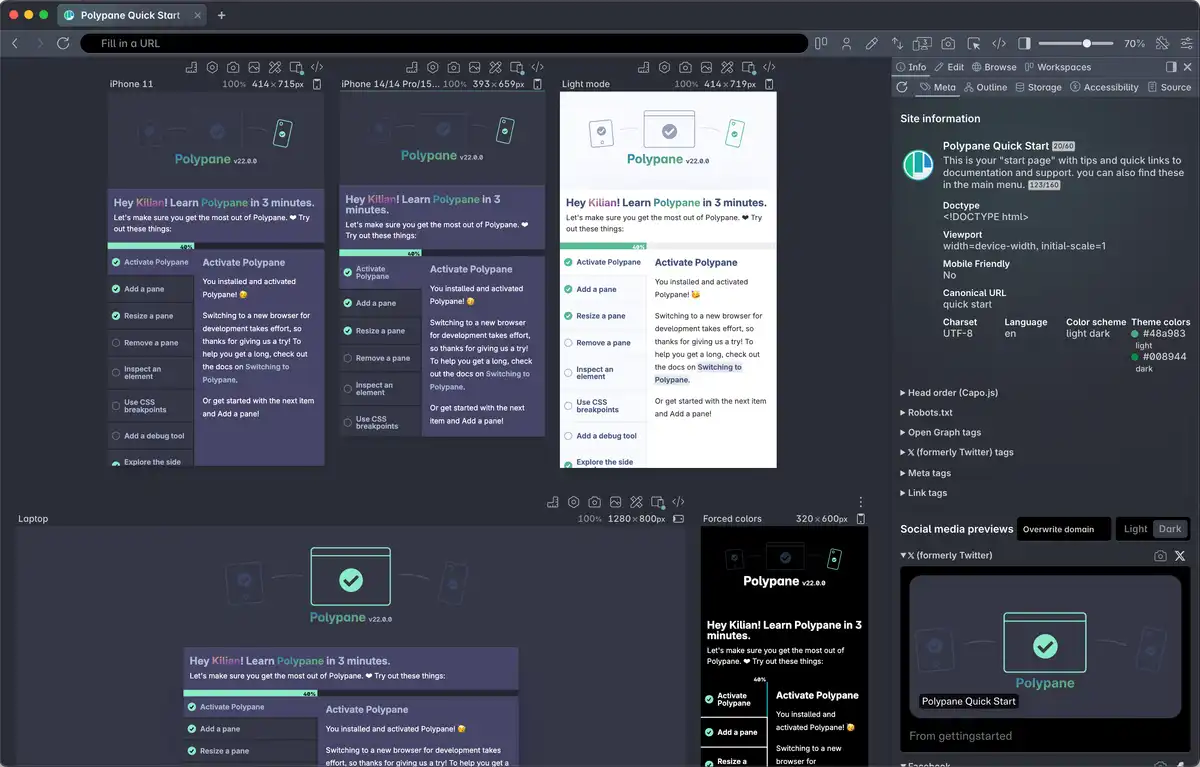
 What's Polypane? Polypane has everything a browser has, plus all the tools you need to build responsive, fast, accessible, and SEO-friendly websites and apps with multi-viewport synchronised previews, comprehensive device emulation and extensive accessibility tooling.
Polypane Automation
Polypane Automation lets AI agents control and get feedback from Polypane using its built-in MCP server. Connect Claude Code, Cursor, Codex, Copilot or any other supported AI tool to Polypane and let it interact with your projects. It is a huge leap forward for how Polypane can be used.
Automation is installable in a wide range of tools like Antigravity, Claude Code, Cursor, JetBrains IDEs, OpenCode, VS Code and Zed, or any other MCP-supporting app.
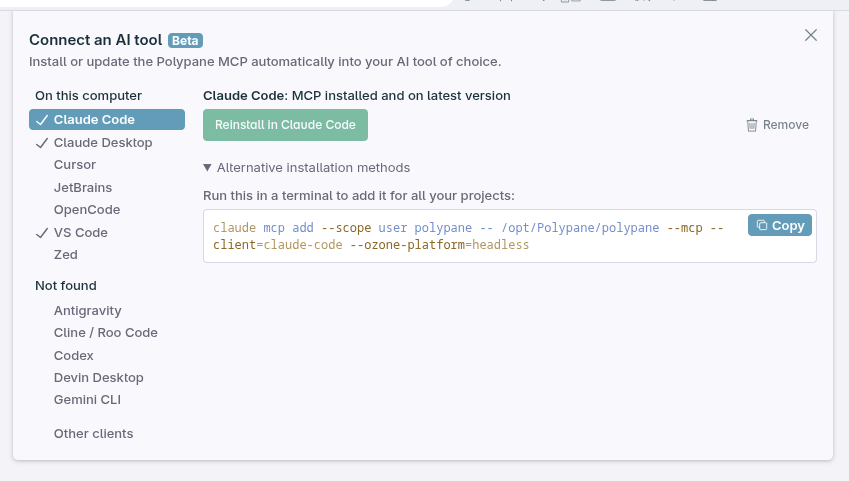
All the capabilities of the MCP server are also available through the CLI, polypane --mcp, which means you can hook up Polypane to deterministic scripts and automation workflows.
Developers first, always
Polypane has always had one goal: help developers build better websites. For years that meant taking the place of a consumer browser in your setup.
More and more of that work now happens through AI tools like Claude Code and Codex, and those tools test your site in a bare-bones, single-size webview, often not even shown to the developer. There's one viewport, no accessibility checks and no real idea or judgment of what you're looking at. They write the code, then check it themselves and then tell the developer it all looks good.
Automation puts you back in the driver's seat. You and your agent get to work together in the same environment, with full visibility and control over the development process. If something looks off, you can immediately spot it and steer your agent in the right direction.
How Automation works
Automation works with the agent you already use, so everything it knows about your project, your conventions and your processes comes along.
Your agent joins you in Polypane instead of there being a hidden instance sending data back and forth. This lets you direct its actions, review its decisions, and intervene when necessary.
All of Polypane's projects, panes, settings, panels and built-in checks are exposed, allowing your agent to interact with your projects in the same way you do, and get the same feedback while it works so it can fix issues accurately and efficiently.
When working with Automation in Polypane, the Automation bar keeps you informed of which agents are connected and in control of their actions:
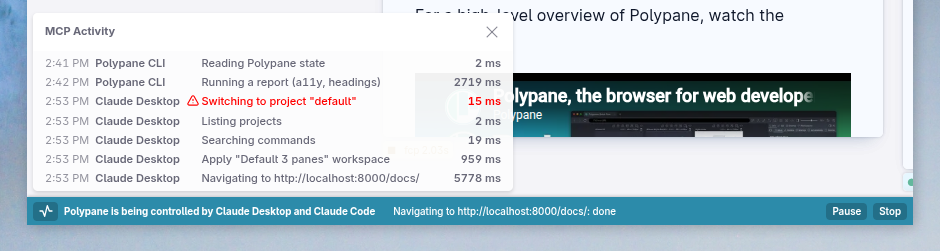
We have an extensive set of permission and security controls to ensure that your agents can only perform actions that you explicitly allow. The MCP server works over stdio instead of a HTTP server, so only apps you currently have running can communicate with it.
Using Polypane Automation
Once your agent has connected with Polypane, you can ask it simple things like:
- "Open localhost:3000 in a new tab with an iphone, android and desktop device"
- "Review the heading outline"
- "Test the color_contrast webmcp tool"
Automation also installs a SKILL.md file alongside the MCP server, which allows your agents to handle more advanced tasks:
- "Check out the website currently open in Polypane and fully audit it"
- "The header overlaps the content on small screens. Find out why in Polypane and fix it"
For more information, check out our extensive Automation docs (or point your agent at them and ask it to explain).
If you're token-conscious, the CLI can be used to interact with the MCP server directly, giving you more control over what gets sent and received.
Off by default
Automation is off by default, and there are no sparkle buttons nudging you to turn it on. Also, it sees the same things you do, and gets the same information you get. That is very much intentional.
Polypane is bootstrapped, so there's no pressure to push AI to make number go up (though I'm not against number go up, tell all your friends about Polypane!).
But the real reason is simpler: You're building websites and webapps for real people who navigate by keyboard, who have a slow connection, or who are squinting at a small screen in bright sunlight. Polypane's goal in all of this is to help you do that effectively.
Understanding what works for people takes empathy and judgment, and that's innately human. Automation assists, if you want it to, but it should not distance us from the people we're building a better web for.
WebMCP panel
The WebMCP panel lets you inspect, test, and validate WebMCP functionality directly, in a deterministic and controlled way.
It lists all the WebMCP tools available on the page and audits them against best practices like missing or long descriptions, issues with the input schema and more.
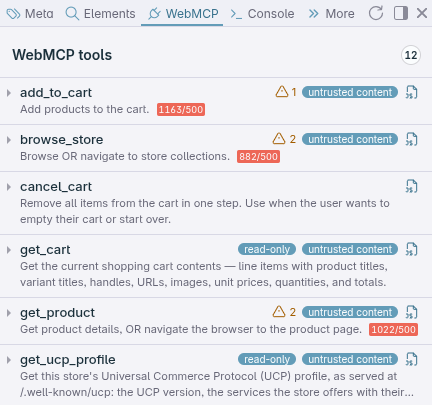
When you open one of the tools, it will show you its details and a form generated from the input schema. This already helps you verify that your tooling is defined in a correct and structured way.
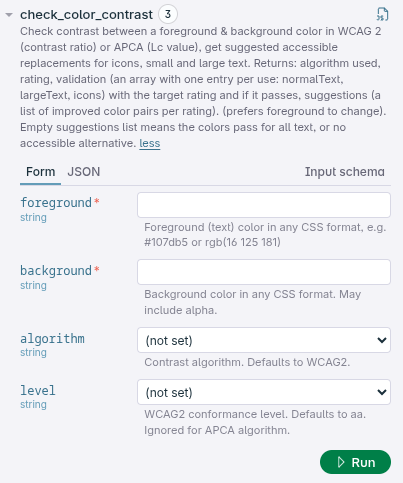
Fill in the form and run the tool so you can check the output and how long it took. All calls are kept in the history and can be replayed or edited for new inputs, making it easy to test different scenarios without having to start from scratch each time.
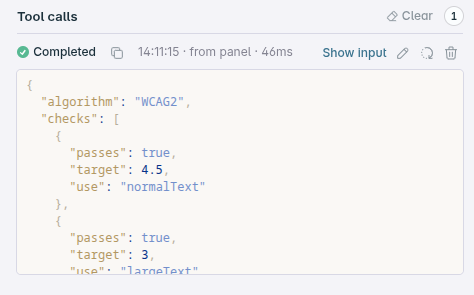
For a full overview of the WebMCP panel, check out the WebMCP Panel docs. If you want to play around with a WebMCP tool, we added one to our color contrast checker.
A note on WebMCP
WebMCP might change. It is a Chromium-only technology and still an evolving standard. Other browsers aren't on board yet: Firefox has a 'neutral' stance, and Safari has opposed the specification because they have concerns about both prompt injection and fingerprinting.
You can 100% expect it to change over time, and there are legitimate concerns around having a separate-because-it's-faster access point for LLMs to the web.
Companies like Stripe, Shopify and OpenAI are already shipping support for it though. We're adding support for WebMCP in Polypane to help you test and validate it, even as the standard evolves.
Meta panel updates
The Meta panel continues to evolve, showing more information and giving you better insights into your web pages' metadata.
In Polypane 32 we added speculation rules and obsolete tag detection, expanded validation for webmanifest and oEmbed, and added more checks for resource hints, color-scheme and more.
Speculation rules
You can use speculation rules to let the browser automatically prefetch and prerender pages depending on user behavior, speeding up the time between the user clicking a link and the page being ready.
The new speculation rules section in the meta panel lists all the speculation rule blocks you might have, as well as any speculation rule headers you set.
It then finds all the matching links on your page that correspond to those speculation rules, giving you a clear overview of how your prefetching and prerendering strategies are being applied.
As you interact with the page, you'll get live updates on what the browser is actually doing: fetching pages, rendering them or purging them from the cache again.
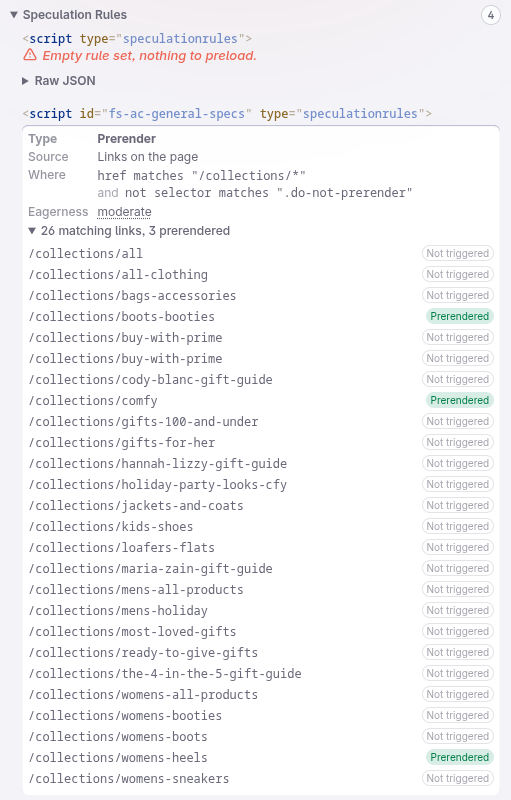
If you're into web performance, this tooling is invaluable. It makes it really easy to see how your pages are affected by your prefetching and prerendering strategies.
Any issues with the speculation rules, such as conflicting rules or invalid values, will be highlighted to help you identify and fix potential problems.
Obsolete tags
Every website that sticks around for a while ends up with cobwebs: pieces of code that used to do something, but no longer do, like an fb:pages id, or a meta tag for IE10.
These remnants of past requirements are hard to get rid of, since figuring out if they're still relevant is a lot of work for a few bytes at most.
Polypane 32 helps you identify these cobwebs by highlighting obsolete tags in the meta panel. This makes it easier to clean up your pages and keep your codebase lean and maintainable.

Hover over the cobweb for more information on why it's obsolete.
All obsolete tags are also listed in their own overview, grouped by type.
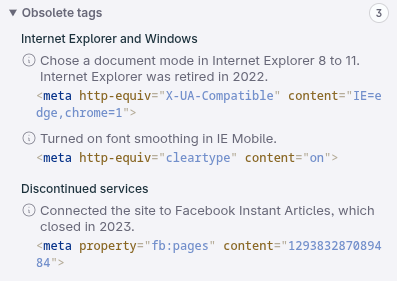
The list of obsolete tags we detect and flag is long, but it only contains things that are truly obsolete and serve no purpose anymore. This makes them 100% safe to remove from your codebase.
As an example: while we could flag twitter:description because most tools will fall back to og:description, it is still used as the primary source for multiple platforms, so it isn't obsolete. The twitter:dnt tag, is completely ignored so it's obsolete and should be removed.
Webmanifest and oEmbed validation
We updated our webmanifest overview by grouping entries by type, making it easier to spot missing or incorrect fields at a glance. Along with the grouping, we'll also surface any issues that make a webmanifest invalid or prevent it from being installed.
oEmbeds now list both the JSON and XML versions and give you warnings when required data is missing or in the wrong format, and also when their data isn't consistent between the two versions.
For both oEmbed and webmanifest we're also showing the raw JSON (or XML) data, so you can inspect it directly if needed, something we've also added to our JSON-LD listings.
Resource hint validation
Resource hints like preload and prefetch are quite easy to mess up and because nothing breaks (things are just somewhat slower), it's hard to figure out if they're doing anything.
Polypane will warn you if a resource hint is missing required attributes, has incorrect values, or is used in a context where it won't have the intended effect.
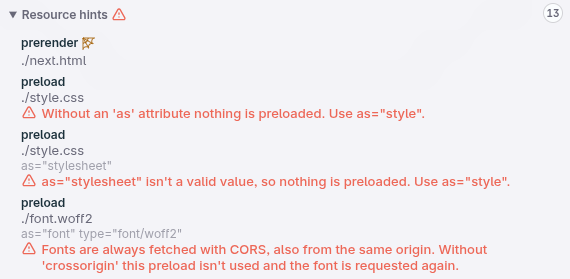
As you have come to expect from Polypane, when an issue is detected with a resource hint, we'll not just show the issue but also suggest how to fix it.
You can find everything the meta panel does in our docs: Meta panel documentation
Elements panel
Along with some noticeable performance improvements, the Elements panel has significant upgrades to the styles tab, and now lets you reorder the tabs to better fit your workflow.
Randomize values
We've been thinking a lot about how we can improve the Elements panel to support all the new CSS functions, and after spending a lot of time with random() recently, we decided to add tooling specifically for it.
There are three things we wanted to enable:
- Knowing what value a
random()property landed on. - Randomizing values to see different possibilities.
- Selecting a specific value within the range.
Together, these give you the insight you need to understand the possibilities or range of values that a random() property can take and the effect that has on your design.
Showing the used value
When a property uses random(), Polypane now shows the value when you hover over it. When you use multiple random() properties, each will show its used value independently, and when you use random values that come from a custom property, those will also display their used value on hover.
Randomizing values
To get new random values, click the randomize button next to properties that use random(). Behind the scenes this will re-seed the random() function, generating new values for all properties that use it.
Selecting a specific value
Hover over a property that uses random(), then drag the slider that appears to choose a specific value.
If you want to go back to the initial random() value, click the revert button next to the slider. This will revert it to the value that was originally generated when the page loaded.
Combined, these make it really easy to figure out what the range of styling values is and to experiment with different possibilities without manually editing the CSS or constantly refreshing the page.
CSS syntax highlighting
The styles and computed styles tabs now both have syntax highlighting for CSS, making it easier to read and understand your styles at a glance.
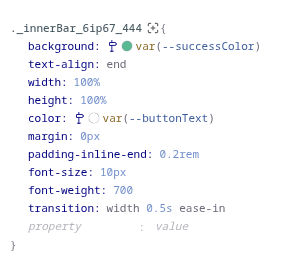
Used value detection
CSS has various functions that pick values conditionally, like clamp(), min(), max() and if(). Polypane now detects the used value for these functions, striking through the unused values to make it clear which value was actually applied.
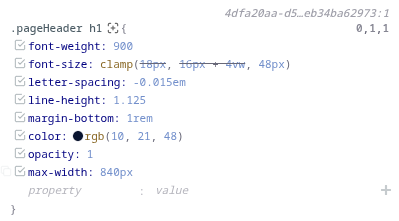
These are dynamic, so when editing your styles or interacting with the page, the strikethrough will update to reflect the currently used value.
For if(), which has a lot more going on, Polypane will strike through the branches that are not taken and underline the one currently applied.
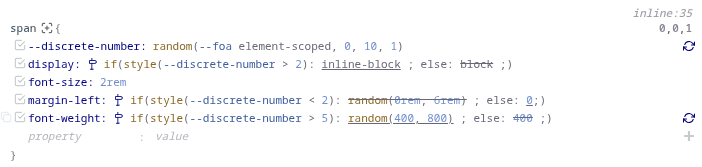
Doesn't modern CSS Look wonderful? There are two additional things of note about the image above:
- Notice that while both
margin-leftandfont-weighthave arandom()function in one of their branches, only the one whose branch is active shows a randomize button. - The style value when using custom properties will show the resolved value of the custom property on hover, and also link to the definition of the custom property.
Reorder tabs
The tabs in the Elements panel can now be reordered by dragging them, allowing you to customize the order to fit your workflow. The leftmost tab is the one that will be opened by default.
The Elements panel documentation has more details on everything it's capable of.
Network panel updates
We've been busy iterating on the network panel, improving the way it displays data and adding deeper insights into network requests and their performance. A lot of the tweaks focus on making the network panel easier to use.
For long-lived pages (like SPAs) we now make sure that the timing bar at the top keeps the relevant data points visible even if more requests come in later. The zebra striping in the lists is now stable, meaning it doesn't change as new requests are added. Lastly, we fixed a bug where the ordering of origins could change unexpectedly.
Show duration per pane
The duration shown in the table is the average of all panes, but sometimes the duration per pane can be relevant too. Additionally, the duration of a request encompasses multiple steps, from queueing to waiting for the server to content download.
Hovering over the duration of a request now shows you, for each pane, exactly how long each step of the request took.
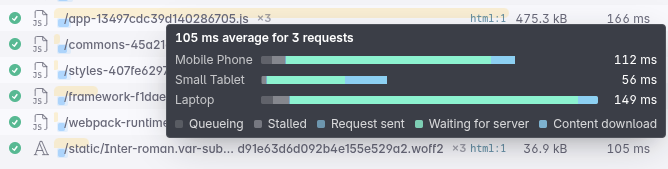
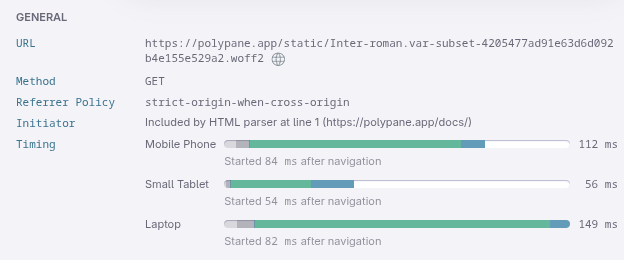
When you open the details of a request, you can further inspect the timing data, as well as see how long it took after the initial navigation before the request even started.
Here we've also expanded the initiator information (also available when hovering over the initiators in the table) to get a detailed view of what triggered the request in each pane.
Show failed requests and errors
The network panel previously silently dropped requests that started but failed along the way due to DNS issues, network issues or CORS. This is different from server errors, where the server does respond, just with an error status.
These failed requests are now also listed with human-readable error messages, making it easier to understand what went wrong and why the request failed.
Head over to the network panel documentation for more details on how to inspect network requests in Polypane.
Outline panel updates
The outline panel has two big improvements: a new media overview, and focus order now includes native components.
Along with these, we've also improved the link checking further, giving more accurate results for more varied server configurations, and improved the warnings to take the current state of pages into account.
Media overview
We've replaced the image overview with a media overview that also lists videos and SVGs.
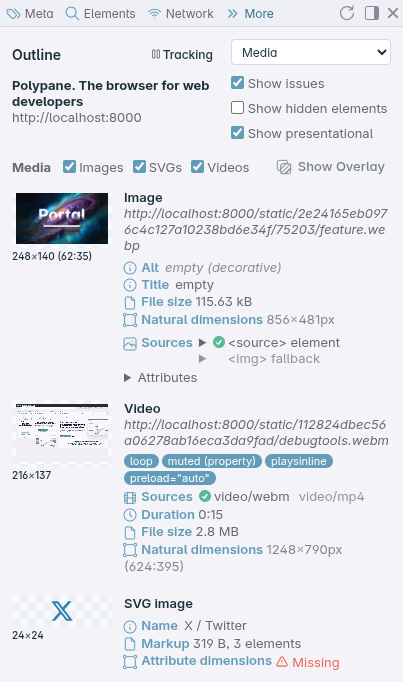
Images and videos now show checkmarks for the used source options so you know exactly which media assets are being loaded and used on your page.
If media elements are used multiple times on a page, they are listed once in the overview and you can easily see all the places they're used.
Additional checks
We've also added more checks for media elements to ensure they are properly configured and accessible.
For videos, the panel will check attributes to make sure things like playsinline are set to prevent videos going full screen automatically on iPhones.
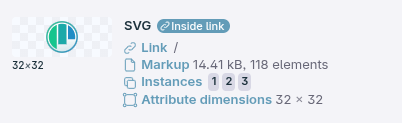
The panel gives additional warnings for SVGs when they don't have intrinsic dimensions or when a name is expected but missing.
Focus order
Our focus order visualization can now also show items inside native components like video players and segmented form controls. These contain individually tabbable parts that aren't exposed in the DOM, but are still part of the focus order and can be navigated using the keyboard.
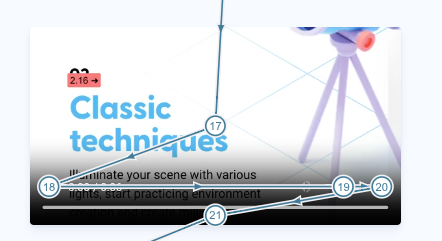
Along with this, we've improved the way we handle sticky elements so that as you scroll, the focus order overlay remains correctly aligned with the content, providing an accurate representation of the focus order at all times.
The Outline panel docs have more information on how to use the media overview and focus order features.
Accessibility panel checks all panes
Some accessibility errors only happen at certain sizes, so we've updated the accessibility panel to run the checks inside all panes.
This gives you a full overview of accessibility issues across all panes, ensuring that you catch problems that may only appear at specific viewport sizes.
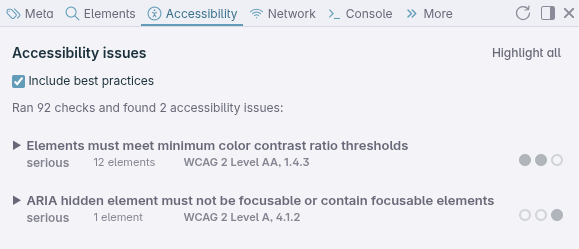
Like in the console panel, dots for each issue will show you which panes are affected, giving you a quick visual overview of accessibility problems across all viewport sizes.
The Accessibility panel documentation provides more details on how we test.
Console panel updates
We made a number of improvements to the console panel, but most of them are under the hood, focusing on preventing double work when processing console messages across panes.
Smarter error stacks
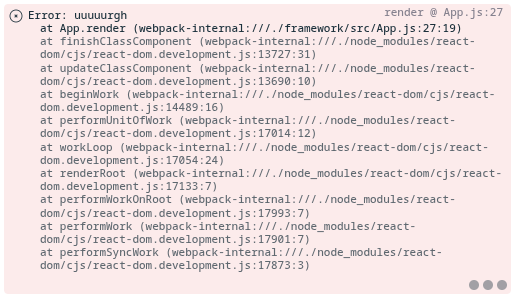
For errors with stack traces, Polypane now automatically collapses the stack trace to only your code, ignoring framework and library code by default.
This makes it much easier to focus on the relevant parts of the stack trace without being distracted by external code.

Click the 'show all' button to expand the full stack trace if you need to see the external code for debugging purposes.
Detect links
The console now automatically detects links in error messages and logs, and clicking them opens them in the browse panel.

For everything the console in Polypane can do, check our Console documentation.
Copy page as Markdown
You can now right-click any page to copy its contents as Markdown.
We added this to provide an efficient way for agents to access page content, but then realized it would also be a convenient feature for developers to quickly grab the page content in a familiar format.
Copy page as Markdown will preserve headings, links, images, lists and even code blocks. This makes it easy to take the content from any page and use it in documentation, notes, or other Markdown-based workflows.
Smaller updates
We have a whole range of smaller quality-of-life features in this release. I want to highlight four of them:
Full-height snippet editor
When editing a snippet you can now expand the editor to the full size of the panel. This makes it much easier to work with if you have a lot of CSS or JS in your snippet.
Along with this, we made two small usability improvements: when you edit a CSS snippet that's currently active, it now automatically opens in live preview mode so all your changes are immediately visible while you work on them.
Additionally, if you try to close an unsaved snippet with changes, we show a warning. With the live preview already visible in the page, it's easy to forget that you have to save a snippet to retain the changes.
Entra support
After the significant work in previous releases to bring passkey support to Polypane across all three platforms, Polypane now supports Entra-specific authentication too.
Entra is Microsoft's identity platform, and rather than using generic passkeys, it relies on additional authentication methods mediated through OS calls on Windows and Mac, and a third-party app on Linux.
If Entra was keeping you from fully utilizing passkeys in Polypane before, this update should resolve those issues and provide a seamless authentication experience for Entra users.
Force sync on specific forms
Polypane has built-in logic for handling sync when it comes to forms. If Polypane detects that clicking a button submits a form, the sync is prevented. This ensures that form submissions only reach your server once, while still allowing Polypane to sync other interactions reliably.
If you don't want this behavior, you can now use a custom data attribute on an element or the containing form to explicitly allow syncing of form submissions:
<form data-polypane-sync="true">
  <!-- form fields -->
  <button type="submit">Submit</button>
</form>
Alternatively, sometimes you might have a button that isn't in a form but still triggers something that should only happen once (like a "delete the last element" button). You can also use data-polypane-sync="false" on that button to prevent Polypane from syncing its clicks:
<button data-polypane-sync="false">Delete last element</button>These data attributes can be in your own HTML (they don't set any other behavior) or you can add them manually using the Elements panel. Polypane checks the element itself and all its ancestors to determine if syncing should be allowed or prevented.
Data attributes added programmatically are also supported:
element.dataset.polypaneSync = 'true';Improved horizontal overflow detection
Polypane's horizontal overflow detection got a whole lot smarter. It now checks the style properties of each overflowing element to determine if it is responsible for the overflow or just scales to the available width.
The report in the console now only lists the elements responsible for the overflow, making it drastically faster (again!) to find the cause.
Chromium 160
Polypane 32 is built on Chromium 160. For all the experimental features enabled in this release, check out the experimental web platform features overview.
Get Polypane 32
Polypane is available for Windows, Mac, and Linux in 64-bit and ARM versions. Polypane automatically updates, but you can also go to the download page to download the latest version!
Don't have Polypane yet? There is a 14-day trial available.
Try it for free. No credit card needed.
Polypane 32 Changelog
New
- New Polypane Automation (MCP and CLI)
- New Speculation rules overview in Meta panel
- New Obsolete tag detection in Meta panel
- New Media overview with images, videos and SVGs in Outline panel
- New WebMCP testing panel
- New Copy page as Markdown
- New Chromium 160
Improved
- Improved Debug tools: horizontal overflow detection is more intelligent and accurate
- Improved Debug tools: horizontal overflow button has active status
- Improved Debug tools: combine reachability checks in one line
- Improved Debug tools: target size now logs small elements
- Improved Accessibility panel: checks all open panes
- Improved Accessibility panel: lists the number of tests it runs
- Improved Accessibility panel: updated list of checks
- Improved Network panel: shows human-readable error messages
- Improved Network panel: shows detailed timing information (Thanks Matija!)
- Improved Network panel: timeline now takes Web Vitals timing into account
- Improved Network panel: also shows failed requests without response
- Improved Console panel: error stacks now filter out internal frames and node_modules
- Improved Console panel: detect links and make them clickable
- Improved Console panel: grouped HTML elements are now faster and more accurate
- Improved Elements panel: improve handling of nested media queries
- Improved Elements panel: filtering styles now also filters font and keyframe declarations
- Improved Elements panel: debug tab shows element's box-sizing
- Improved Elements panel: syntax highlight styles
- Improved Elements panel: strikethrough inactive clamp, min, max, minmax and if function items
- Improved Elements panel: allow reordering tabs (Thanks Eric!)
- Improved Elements panel: go to definition for custom properties in style() functions
- Improved Elements panel: hover
random()now shows the actual value - Improved Elements panel:
random()values can now be set explicitly or reseeded - Improved Meta panel: smarter canonical URL comparison logic
- Improved Meta panel: validation of color-scheme, JSON-LD and resource hints
- Improved Meta panel: JSON-LD overview now lets you inspect raw JSON too
- Improved Meta panel: updated styling for webmanifest
- Improved Meta panel: support XML oEmbed info and highlight differences
- Improved Meta panel: validate webmanifest for installability errors (Thanks Walther!)
- Improved Meta panel: badge styling updates
- Improved Browse panel: add a share/QR button
- Improved Recording: shows a warning for zoomed-out panes
- Improved Screenshots: save all viewports now uses stored folder (Thanks Eric!)
- Improved Outline panel: focus order overlay supports shadow DOM internals and handles sticky better
- Improved Outline panel: better checking for broken links with no HEAD support (e.g. Facebook URLs)
- Improved Outline panel: warnings now take into account that other elements are hidden
- Improved Outline panel: visual and accessibility name comparison now ignores whitespace
- Improved Projects: add tab layout is now remembered per project (Thanks John!)
- Improved Syncing: custom attribute to prevent or force syncing (Thanks Benoit!)
- Improved Address bar: more consistent behavior while handling panes with loading web content
- Improved Address bar: support data URLs containing spaces (Thanks Luke!)
- Improved Address bar: prevent input when navigation sync is off for a tab
- Improved Color picker: now gives more accurate color suggestions for low contrast combinations in APCA
- Improved Image editor: remembers last used tools and colors (Thanks Eric!)
- Improved Snippets panel: expand editor to full height option (Thanks Scarlett!)
- Improved Snippets panel: closing edited unsaved snippets now prompts for confirmation
- Improved Entra support on Windows, Mac and Linux
Removed
- Removed Elements panel: remove 'open in Chrome DevTools' button
Fixes
- Fix Prevent crash when fetching links on certain pages
- Fix Projects: no longer shows broken images for items without favicon
- Fix Double click on tab bar maximizes app again
- Fix Switching between layouts no longer focuses unnamed panes
- Fix Image editor no longer shows for images that don't fit the GPU limits
- Fix Playgrounds: support loading external fonts
- Fix Playgrounds: the file URL popup sent the incorrect path on Windows (Thanks Benoit!)
- Fix Emulation: switching to focus layout no longer forgets touch emulation (Thanks Rick!)
- Fix Network panel: prevent showing NaN ms (Thanks Matija!)
- Fix Network panel: stable origin ordering per tab (Thanks Matija!)
- Fix Network panel: support opening in-flight requests (Thanks Matija!)
- Fix Network panel: zebra striping is now stable while requests come in (Thanks Matija!)
- Fix Meta panel: copy buttons for JSON-LD now work correctly
- Fix Storage panel: newlines in cookies are now handled consistently with localStorage
- Fix Snippets panel: toggling a snippet in a detached panel no longer reverts
- Fix Snippets panel: editing an active CSS snippet automatically puts it in live preview (Thanks Scarlett!)
- Fix Outline panel: fix issue with elements lacking computed styles
- Fix Elements panel: now updates styling for elements when children it depends on change
- Fix Elements panel: support style synchronization for blob stylesheets
- Fix Overflow issue in bottom-aligned Elements panel navigator (Thanks Matija!)
- Fix 'Don't sync on next click' could prevent clicks altogether
- Fix Canvas layout: prevent clicking in pane popups from triggering a drag (Thanks Matija!)
- Fix Web Vitals button: sometimes could not highlight INP elements
- Fix Console panel: no longer shows undefined for empty log entries
- Fix Detached navigation glow now sits behind guides when visible
- Fix Meta panel: bug in how Mastodon cards handled domain overrides (Thanks Andrew!)