Documentation
Learn how Polypane improves your workflow
Network panel
The "Network" tab in the panel gives you insight into all the resources that are loaded for the current page, including their status, size and load time, as well as general loading and web vitals information.
Load info
The top of the network panel shows you a bar splitting out general info on the page load like total size, requests, cached files and number of origins that are connected to. When these differ per pane, we show the range of values across the panes, and you can hover over the info to see the values for each pane.
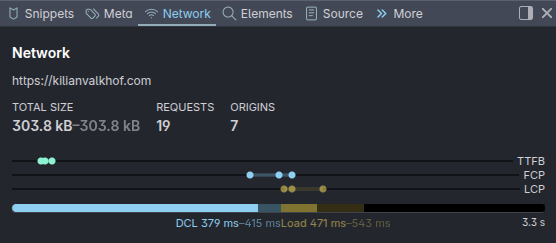
The timeline show you the domContentLoaded (DCL) and load events. When the timing differs here, we exend both bars with a lighter version so you can clearly see the range of timings across the panes. Hover over the bars to see the exact timings for each pane.
As you interact with the page and web vitals information is measured (see Web Vitals), we also show the TTFB, FCP and LCP timings. Each dot represents a pane, and you can over over each bar to see the exact timings.
Filter and grouping
You can quickly filter down the requests by typing in the filter box, which will match the URL and headers of each request and open any closed origins that have matching requests.
Filtering is case insensitive by default, but will switch to case-sensitive when there are uppercase letters.
You can use plain string matching or regular expressions for your filter. For example, ^https:// will only show requests that start with https://, and /\.(jpg|png)/ will only show requests that end with .jpg or .png.
Grouping
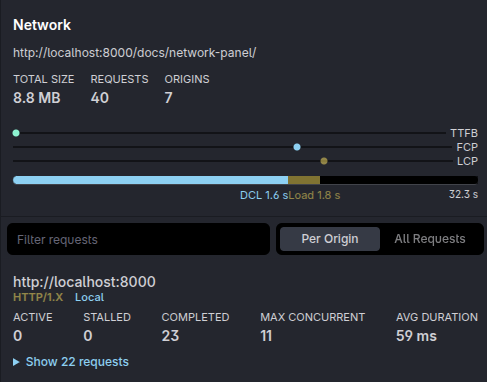
The default grouping splits out the requests per origin and gives information on each origin, like the protocol used, the number of requests and the average timing. This gives you a quick overview of the origins that are connected to and how they perform.
Switch to "all requests" to see all requests in a single list, which can be useful to see the load order of resources across origins and to see the average timing across all requests.
Origins overview
The network panel splits the requests across the origins they come from, so you can see at a glance what origins this page connects to, which protocol they use and how many requests each origin has.
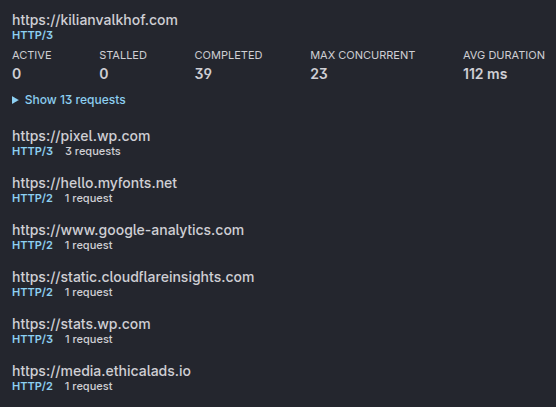
The current origin is always shown at the top and expanded, making its resource stats available:
- Active: requests that are currently being loaded
- Stalled: requests that are taking a long time to load, due to a slow server response or a slow network connection
- Completed The total number of requests that have completed loading, including cached resources
- Max concurrent: The maximum number of concurrent request connections to this origin, which can indicate if the browser or server is limiting connections to this origin
- Avg duration: The average time it takes for a request from this origin to load, which can indicate if the server is slow or if there are network issues
Protocol
For each origin we show the protocol: HTTP/1.x, HTTP/2 or HTTP/3, as well as if the origin is local (from your own machine).
Servers using HTTP/1.x can be a bottleneck for performance.
Bottleneck detection
When Polypane detects that there are many more requests waiting to be processed compared to the measured maximum number of concurrent connections, which can indicate that the server is limiting connections to this origin, we show a warning icon in the network panel for that origin, as well as in the address bar, to make you aware that the server is responsible for load performance issues.
When Polypane detects a bottlenecked local server, it will automatically ask you for permission to add it to a connection whitelist. This lets Polypane open more connections to that server to improve loading across many panes.
Resource overview
As resources are loaded they are added to the list, first as active requests and when they are completed, you can click them open to see the full overview of request and response headers.
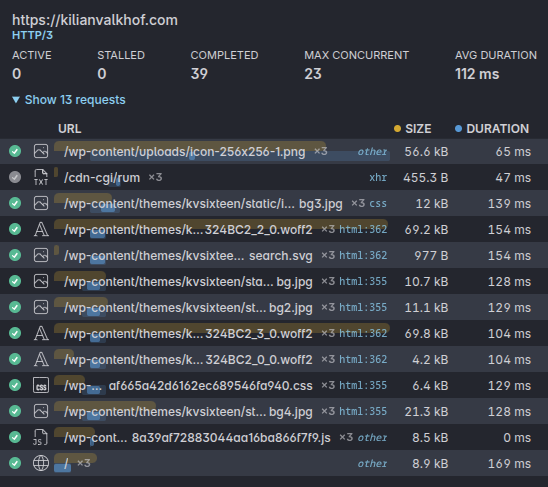
For each origin you can click open the requests to get a detailed overview of all the resources that are loaded from this origin, including their status, type, url, initiator, size and duration.
After each URL, we show how often this resource is loaded across panes. The initiator can be hovered to get a stack trace where available.
The size and duration are also shown as bars to make it easy to compare the resources, and detect issues with the loading order of resources. Hover over the "size" or "duration" header to highlight the bars.
The duration bar is split into a darker and lighter part, showing the minimium and maximum load time across panes, and are shown in a waterfall by default so you can easily see if resources are loaded in parallel or if there are bottlenecks in the loading order.
Sorting
You can sort the table by any of the columns. Sorting by duration will collapse the waterfall-style bars so you can instead compare the load time of each resource.
Clicking the "url" header will initially sort by load order again, and clicking it again will sort alphabetically.
Request and response headers
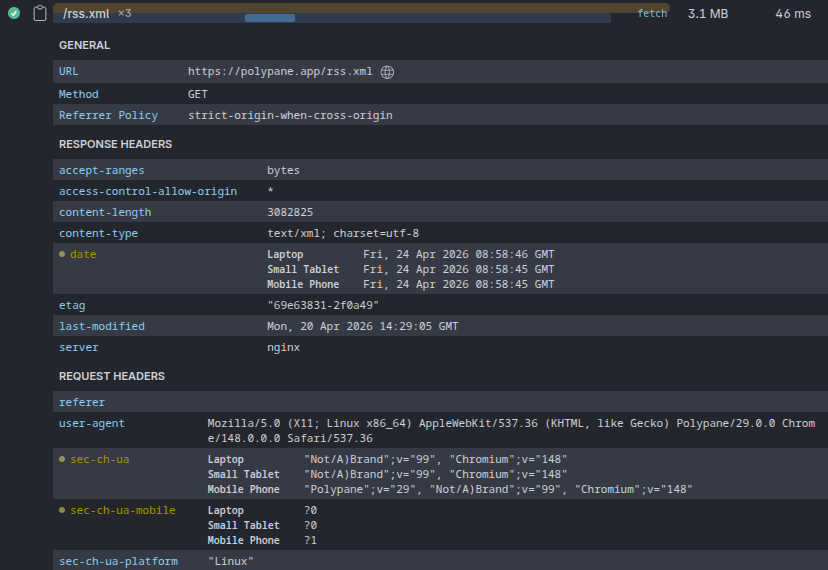
Clicking on a URL will open the overview of request and response headers for that resource. These are split into three categories:
General:
Lists the full URL for easy copying (as well as an 'open in Browse panel') icon), the Method and the Referrer Policy
Response headers:
Lists all response headers the server returns. When different panes have different values for the same header, headers are split out per pane so you can compare them.
Headers with JSON in them, like report-to, are automatically formatted so they're easy to read.
Request headers:
Lists all request headers, like User-Agent and referer. When different panes have different values for the same header, headers are split out per pane so you can compare them.
Have a question about Polypane?
Reach out via (real human) chat, Slack or our contact form:
Contact SupportBuild the way you already build, without missing anything.
Free 14 day trial, no credit card needed.
- 1 Create your account. Takes a minute.
- 2 Download the app. For Windows, Mac & Linux.
- 3 Build your next project with Polypane