Documentation
Learn how Polypane improves your workflow
WebMCP panel
The WebMCP tab in the panel allows you to inspect and interact with WebMCP tools available on the current page.
Available tools
All the tools are listed by name and the first two lines of their description. An icon will tell you whether this is a configured form or a javascript tool, and hovering over the icon will tell you where it's being registered.
Tools flagged as read-only, dealing with untrusted content or being consequential will have these properties visible as badges.
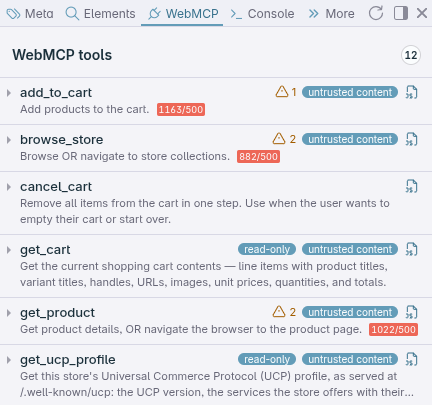
Tools will show how often they are called in the overview, and these survive a page reload to make testing changes.
Tool overview
Tool will show their full description, their input schema, and a generated form based on the schema to call the tool with the specified inputs.
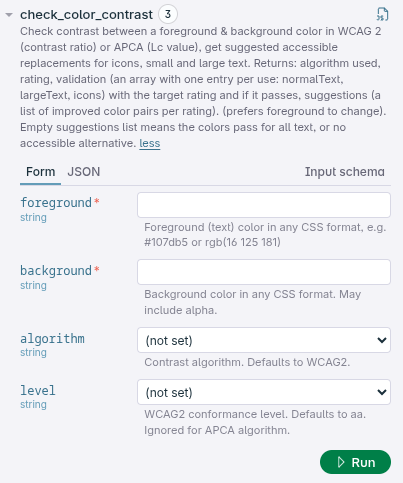
Each form item will show the name, type and description, as well as appropriate input fields for the type specified. The form and json representation of the inputs are kept in sync, allowing you to edit either representation and have the other update automatically.
Toggle the input schema view to show the underlying structure of the tool's inputs, including the types and any constraints defined in the schema:
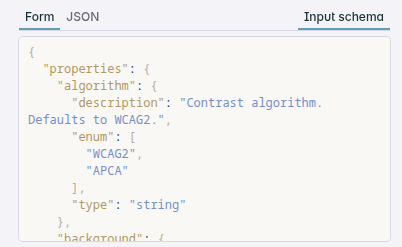
We support the entirety of the input schema types, including strings, numbers, booleans, arrays, and objects, providing appropriate input fields for each type.
Running tools
To run a tool, fill out the generated form with the desired inputs and click the "Run" button. You can pick which panes to run the tool in (default: all panes).
The tool will execute with the specified inputs, and the results will be displayed below the form in a list of tool calls. The result will be merged when the same for all panes, or split across panes if it differs.
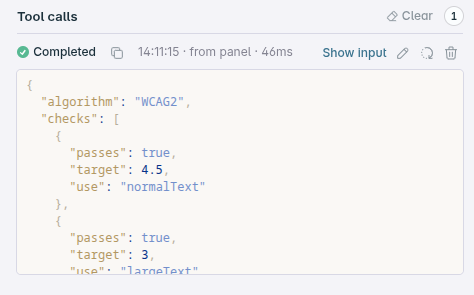
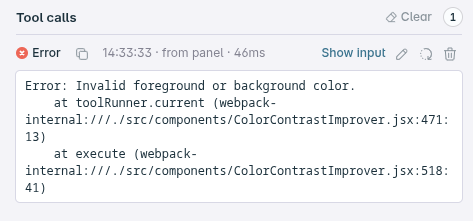
Each tool call will show you the state of the tool (pending, success, completed), timing information (when it was called and how long it took to run), where the call came from (the panel, or third party tooling through automation) and the input and output.
A copy button for each tool will give you a JS snippet to reproduce the tool call with the specified inputs. Clicking "show input" will give you the JSON representation of the inputs.
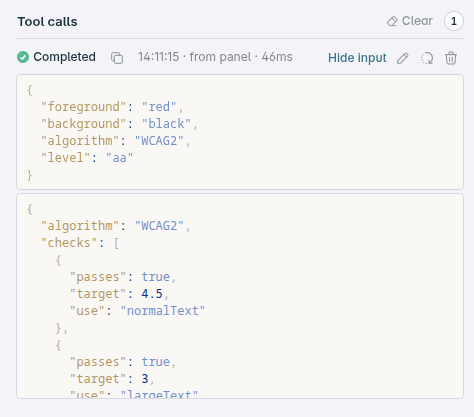
Click the pencil icon to populate the form with the same input data as a tool call, click the replay icon to immediately run the tool with the same inputs, or click the trash icon to delete the tool call from the list.
Validation
Polypane will check your tool declarations against best practices and provide feedback if any issues are detected. This helps ensure that your tools are correctly defined and follow recommended patterns for input validation, output handling, and overall tool structure.
Have a question about Polypane?
Reach out via (real human) chat, Slack or our contact form:
Contact SupportBuild the way you already build, without missing anything.
Free 14 day trial, no credit card needed.
- 1 Create your account. Takes a minute.
- 2 Download the app. For Windows, Mac & Linux.
- 3 Build your next project with Polypane