Documentation
Learn how Polypane improves your workflow
Devtools Panel
The Chromium Devtools tab in the panel let you select a pane to open the Chromium devtools for. You can also open the Chromium devtools for a specific pane by clicking the icon above the pane or right click anywhere in a pane and select "Inspect element (in devtools)" to inspect the element under the cursor.
Chromium devtools are limited to a single pane at a time. If you want to inspect and see your changes made across panes, we recommend you use the Elements panel and the Console panel instead.
Devtools extensions
You can install devtools extensions like the React or Vue.js DevTools. Learn about them here: Browser Extensions.
Undocking the Chromium devtools
If you prefer the devtools to be undocked, you can uncheck "Docked devtools" in the global Edit menu (the one next to the File menu).
Inspect workers
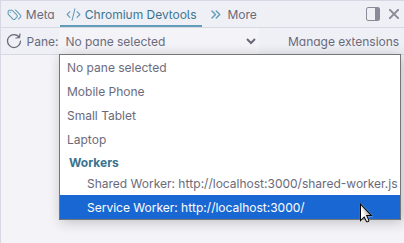
Polypane automatically collects shared workers and service workers that run for the current domain and lists them in the dropdown. Selecting these will open devtools for that worker in a new window, just like you would get when inspecting a worker in Chrome.
Reloading devtools
Sometimes the Chromium devtools lose their connection to your pane, which will show itself as the elements panel no longer showing the correct DOM structure.
When this happens, reloading the devtools reestablishes the connection. Click the reload button in the devtools toolbar to do this.
Using the Chromium developer tools by default
Right click the Inspect element icon in the header to switch it to always inspect elements with the Chromium devtools. When this is active, the icon will show a small devtools icon alongside it. Now inspecting from the address bar or with the ⇧ ⌘ C shortcut will default to using the chrome developer tools.
The Polypane Peek feature also works with the Chromium devtools so you can still hold ⌥ to inspect.
Have a question about Polypane?
Reach out via (real human) chat, Slack or our contact form:
Contact SupportBuild the way you already build, without missing anything.
Free 14 day trial, no credit card needed.
- 1 Create your account. Takes a minute.
- 2 Download the app. For Windows, Mac & Linux.
- 3 Build your next project with Polypane