Documentation
Learn how Polypane improves your workflow
Command line options
Polypane has a few command line options.
On Linux polypane will be available in your path after installation, so just polypane will work. On Windows and on Mac you need the full path:
- Windows:
C:\Program Files\Polypane\Polypane.exe - macOS:
/Applications/Polypane.app/Contents/MacOS/Polypane
For simplicity, we will use polypane in the examples below.
Opening URLs
You can start Polypane with one or more URLs as the first argument to open those URLs.
$ polypane https://example.com polypane.appYou do not need to include the http:// or https:// prefix, but Polypane will use http by default (which for most sites will redirect to https).
On macOS you can use:
$ open https://example.com -a "Polypane"Note that in this case you don't need the full path on macOS. That is needed if you want to use any flags.
Reload
To reload the currently active tab, call Polypane with the --reload or -r flag:
$ polypane --reloadThis will focus the Polypane window as well. If Polypane is not open yet, it will just launch Polypane
Prevent focus
You can start Polypane with -g to prevent it from focusing on launch.
$ polypane -gCombine this with --reload to reload the currently active tab without also focusing Polypane.
$ polypane -g --reloadUse this to hook into your own live reload workflow.
Opening or switching projects
You can call Polypane with --project or -p to open or switch to a specific project. Project names are case insensitive. If you project name contains spaces, you need to wrap it in quotes.
$ polypane --project=projectnameOr the shorthand:
$ polypane -p projectnameThis can also be combined with one or more URLs to open those URLs in the specified project:
$ polypane -p projectname https://polypane.com/docs/ https://polypane.app/support/When the specified project does not exist yet, Polypane will ask if you want to create it. You can automatically create the project without prompt by adding the --create flag.
$ polypane -p projectname --create https://polypane.com/docs/ https://polypane.app/support/Remote debugging
You can start Polypane with --remote-debugging-port to enable remote debugging.
This will open a port that you can connect to with Chrome Devtools or IDEs that support remote debugging, like VSCode and WebStorm.
$ polypane --remote-debugging-port=9222Learn how to set up WebStorm here: Configuring WebStorm to work with Polypane.
Some tools might create a new user directory when starting a remote debugging session. This is currently not supported by Polypane.
Help
You can call Polypane with --help or -h to see a list of available command line options.
$ polypane --help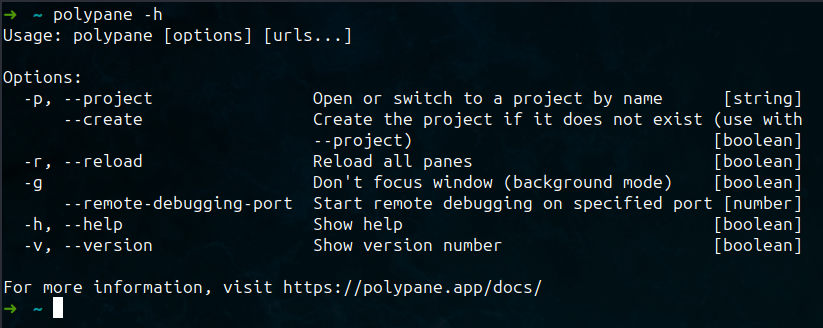
Looking for more command line options?
Let us know your ideas and we'll see if we can add them in!
Have a question about Polypane?
Reach out via (real human) chat, Slack or our contact form:
Contact SupportBuild the way you already build, without missing anything.
Free 14 day trial, no credit card needed.
- 1 Create your account. Takes a minute.
- 2 Download the app. For Windows, Mac & Linux.
- 3 Build your next project with Polypane