Documentation
Learn how Polypane improves your workflow
Social card and Open Graph workflow
Getting social cards right involves more than writing the correct meta tags. The image dimensions, text truncation, domain display, and fallback behaviour all differ across platforms. Polypane's Meta panel generates accurate previews for each platform so you can check everything without publishing first.
1. Open the Meta panel
Open the panel and click the Meta tab under Info. Polypane loads the metadata for the current page and shows a summary of key information: title, description, canonical URL, and Open Graph and Twitter/X card values.
2. Check for missing or invalid tags
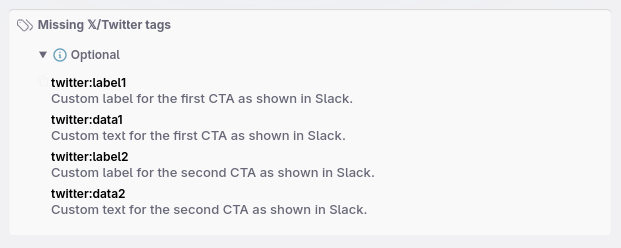
Polypane lists all expected Open Graph and Twitter/X tags and flags the ones that are missing. Tags marked as required will prevent a card from rendering correctly on some platforms. Tags marked as recommended can improve how the card looks but will not break it entirely.
Click the copy icon next to any missing tag to get a ready-to-paste HTML snippet with a suggested value filled in. For og:image, Polypane checks that the value is a fully qualified URL and warns you if it is not, since relative URLs are not supported by most social platforms.
If you have duplicate tags, those are flagged here too.
3. Review the social card previews
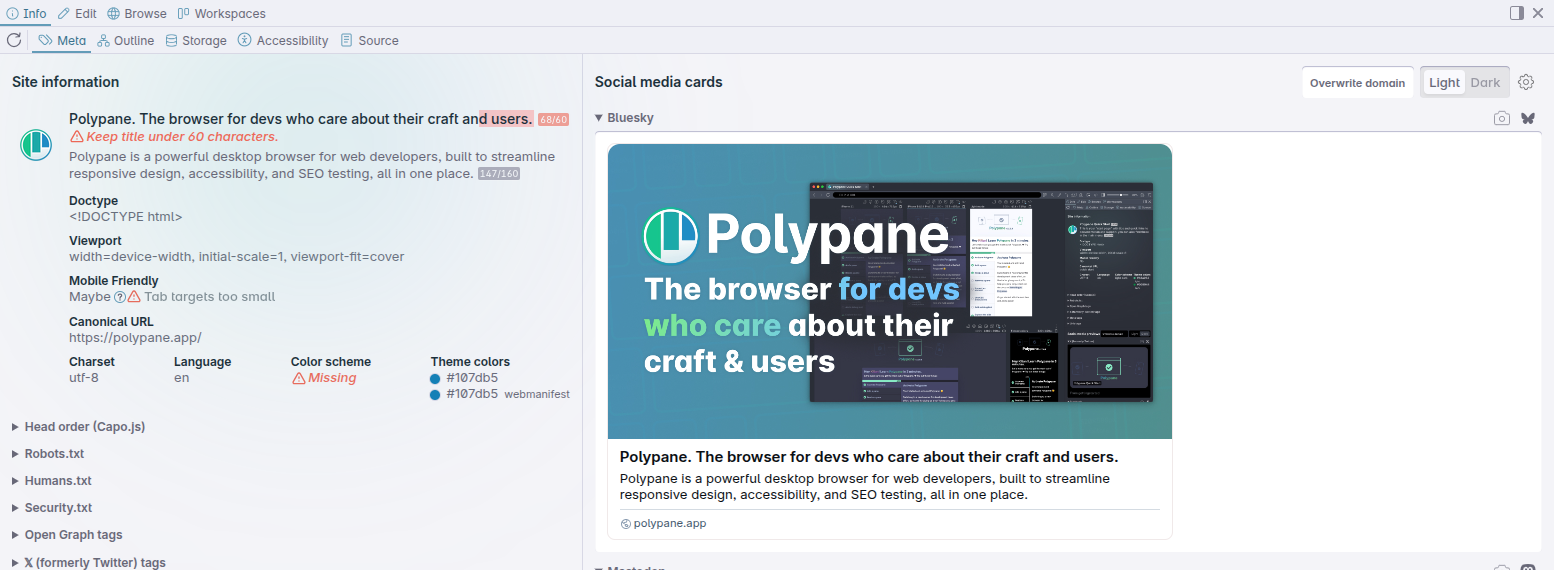
Scroll down to the social card preview section. Polypane generates pixel-perfect and character-perfect previews for the following platforms:
- 𝕏 (formerly Twitter)
- Slack
- Discord
- Telegram
- Bluesky
- Mastodon
- Threads
- Google search result
Each preview renders in both light and dark mode, and the text truncation matches what the real platform shows: if text fits in the Polypane preview it fits on the live site.
To hide platforms you do not use, click the gear icon in the social card section and toggle or reorder the previews to match the platforms your audience actually uses.
4. Test with your real domain
If you are working on localhost, the previews will show localhost as the domain, which is not what visitors will see. Enter your real domain in the Domain override field at the top of the social card section. You can type just the domain like example.com or a full URL. All previews update immediately.
5. Open the platform debuggers
For 𝕏, Facebook and LinkedIn, Polypane shows a button that opens the platform's official card debugger in the Browse panel with your current URL pre-filled. Use these to clear the platform's cache after you push changes or to confirm your card is indexed correctly.
6. Screenshot the previews
Click the camera icon above any preview to take a screenshot of it at the correct dimensions. Use these to share proposed card designs with stakeholders or to document the current state before making changes.
See also
- Meta panel for the full list of checks and previews
- Browse panel for loading the platform debuggers
- Making screenshots to capture previews as images
From the blog
- Where to put text so it doesn't overlap in the new X (Twitter) preview: the safe zone dimensions for X card images and where text gets clipped
Have a question about Polypane?
Reach out via (real human) chat, Slack or our contact form:
Contact SupportBuild your next project with Polypane
- Use all features on all plans
- On Mac, Windows and Linux
- 14-day free trial – no credit card needed