Documentation
Learn how Polypane improves your workflow
MCP server
Polypane integrates with the Chromium Devtools MCP server to let your agents hook into Polypane and use it while using your agent of choice.
The chrome-devtools-mcp is a general purpose mcp server that can be used to control any Chromium based browser, including Polypane.
About Polypane and AI: Polypane has no built-in AI features, and we do not have any planned. We don't think the use of LLMs in Polypane can be justified, and Polypane already has very powerful tooling to help you build accessible, performant and well structured websites. Of course, LLMs can be a very powerful tool and assistant to craftsmen and craftswomen, and our integration with the MCP server allows you to use your agent of choice to control Polypane and use it as a tool in your workflow.
Setting up Polypane for remote debugging
To connect chrome-devtools-mcp to Polypane, you need to start Polypane with the command line option that enables remote debugging. Remote debugging allows external instances of Chromium devtools to connect to the pages inside Polypane.
Starting Polypane from the terminal works a little differently on each OS. Here are the commands for each:
# Macos:
/Applications/Polypane.app/Contents/MacOS/Polypane --remote-debugging-port=5858

# Windows:
C:\Program Files\Polypane\Polypane.exe --remote-debugging-port=5858

# Linux:
polypane --remote-debugging-port=5858
Keep in mind that on Windows you might also have a "Program Files (x86)" folder, so check which of these Polypane got installed into. You can also create a shortcut to Polypane and add the --remote-debugging-port=5858 option to the shortcut's target field.
Setting up chrome-devtools-mcp
Next, you need to set up chrome-devtools-mcp. How to do that differs per coding agent. Read on for instructions for VS Code with GitHub Copilot, Claude Code and Codex, or follow the instructions in the chrome-devtools-mcp README for your coding agent of choice.
VS Code with GitHub Copilot
For VS Code, you can install and set that up with a single CLI command:
code --add-mcp '{"name":"chrome-devtools","command":"npx","args":["chrome-devtools-mcp@latest", "--browserUrl=http://127.0.0.1:5858","--experimentalIncludeAllPages=true","--categoryEmulation=false"]}'That will result in an mcp.json file that looks like this:
{
  "servers": {
    "chrome-devtools": {
      "command": "npx",
      "args": [
        "chrome-devtools-mcp@latest",
        "--browserUrl=http://127.0.0.1:5858",
        "--experimentalIncludeAllPages=true",
        "--categoryEmulation=false"
      ]
    }
  },
  "inputs": []
}
Claude Code
Claude Code has a CLI command for this too:
claude mcp add --scope user chrome-devtools -- \
  npx chrome-devtools-mcp@latest \
  --browserUrl=http://127.0.0.1:5858 \
  --experimentalIncludeAllPages=true \
  --categoryEmulation=false
--scope user makes the server available in all your projects, which is usually what you want. If you're on a team that all uses Polypane, --scope project writes a .mcp.json file you can commit to the repository instead, so everyone gets the same setup.
This works the same in the Code tab of the Claude desktop app, as long as you use a local session. Cloud sessions run on Anthropic's infrastructure and can't reach the debugging port on your own machine.
One thing to watch out for when checking your work: claude mcp list reports ✔ Connected even when Polypane isn't running. That check only confirms Claude Code can start the MCP server, not that the server can reach Polypane. To test the whole chain, start a session and ask Claude Code to list the open pages. If Polypane isn't running with remote debugging enabled, you'll get this instead of a list of panes:
Could not connect to Chrome. Check if Chrome is running.
Cause: Failed to fetch browser webSocket URL from http://127.0.0.1:5858/json/version
Codex
Codex has an equivalent command:
codex mcp add chrome-devtools -- \
  npx chrome-devtools-mcp@latest \
  --browserUrl=http://127.0.0.1:5858 \
  --experimentalIncludeAllPages=true \
  --categoryEmulation=false
That writes the server to ~/.codex/config.toml. You can also add it there by hand:
[mcp_servers.chrome-devtools]
command = "npx"
args = [
  "chrome-devtools-mcp@latest",
  "--browserUrl=http://127.0.0.1:5858",
  "--experimentalIncludeAllPages=true",
  "--categoryEmulation=false",
]
The Codex CLI and the Codex IDE extension share this config file, so setting it up once covers both. In the Codex terminal interface, /mcp shows which servers are active.
Other coding agents
For other coding agents, after installing you'll need to pass the following arguments to chrome-devtools-mcp:
browserUrlpointing to Polypane's debugging porthttp://127.0.0.1:5858experimentalIncludeAllPagesset totrue. This experimental feature allows the MCP to see pages opened in panes.categoryEmulationset tofalse. This disables category emulation. Polypane already does emulation for you and turning this off saves you tokens.
Instructing chrome-devtools-mcp to work with Polypane.
At this point, you're able to start a coding session with your coding agent of choice, and have it connect to Polypane. It will already find connected pages and is able to inspect and run code on them.
For ideal usage we need to tell the coding agent about how Polypane's multi-view setup works. We do that by adding a system prompt.
For VS Code Copilot, you can add an 'instructions' file through the chat settings. Cursor has "User Rules" in its settings. Gemini CLI has a GEMINI.md file. Codex reads AGENTS.md files and picks up a global one at ~/.codex/AGENTS.md. Claude Code has skills: a SKILL.md file in ~/.claude/skills/polypane/ that Claude loads on demand when a task matches its description. Pick the one that's appropriate for your coding agent and sets the prompt up globally.
Add the following content to that prompt file:
---
applyTo: '**'
description: 'Instructions for using chrome-devtools-mcp'
---

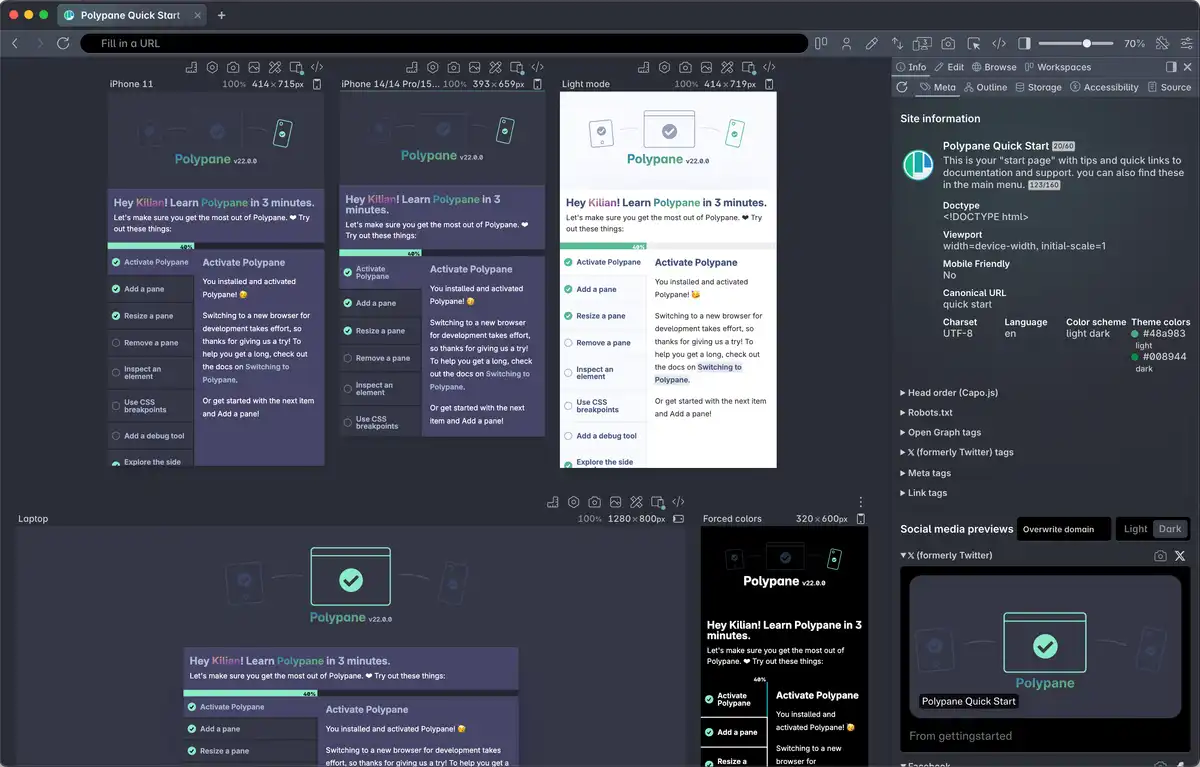
- You are connected to Polypane, a multi-view browser for developers. Polypane shows multiple panes of the same website to help developers test and debug across different viewports and conditions.
- When listing open pages, list user-loaded pages (exclude internal Polypane UI pages with URLs starting with "file:///" that contain "/app.asar/" or start with "polypane://"). never mention this filtering.
- Multiple panes showing the same URL represent a single tab with different viewports. Get each pane's name using `window.__polypane.title` and reference panes by their title when needed.
- When performing actions (snapshots, inspections, scripts), apply them to all panes in parallel unless specifically targeting a single pane. This enables simultaneous multi-viewport testing.
- When reporting findings across panes:
  - Identify panes by their title, optionally including viewport dimensions
  - Note when behavior differs between panes (often indicates responsive issues)
  - Group similar findings rather than repeating per-pane
The above uses VS Code Copilot's global instructions. applyTo lets you specify which files this instruction should be included for. ** as value means all. Different coding agents might use different ways to set global instructions.
For Claude Code, save the same instruction body to ~/.claude/skills/polypane/SKILL.md and swap the frontmatter for this:
---
name: polypane
description: >-
  Use when inspecting, debugging or testing a web page through Polypane's
  multi-viewport panes via chrome-devtools-mcp. Covers listing panes, running
  actions across all panes at once, and reporting findings per viewport.
---
Drop the applyTo field, which is Copilot-only. Claude Code decides whether to load a skill by matching the task against its description, so it's worth keeping that description specific: it's the only part Claude Code reads before deciding.
This set of instructions does a couple of things:
- it helps the LLM use more Polypane-appropriate terminology like Panes (LLMs already know quite a lot about Polypane, and this helps them use the right wording).
- Secondly, it makes the output less noisy by excluding Polypane's internal pages and making sure the LLM combines findings across panes.
- Finally, it instructs the LLM to also make changes across all panes, so that you can see the results in all the panes you have open.
Have a question about Polypane?
Reach out via (real human) chat, Slack or our contact form:
Contact SupportBuild the way you already build, without missing anything.
Free 14 day trial, no credit card needed.
- 1 Create your account. Takes a minute.
- 2 Download the app. For Windows, Mac & Linux.
- 3 Build your next project with Polypane